 Zoom · Sign in
How to Turn On Two-Step Verification and Get Recovery Codes for Zoom
Go to your Profile page on the Zoom website and click Turn On next to Two-Step Verification. Then link an authenticator app or phone number and download your recovery codes to use if you lose your phone.
With two-step verification turned on, you need a 6-digit code as well as your password every time you sign in to Zoom. If someone steals your password, they'll still have a hard time getting into your account. This guide shows you how to turn it on in the Zoom web portal, get your recovery codes, and use them when your phone isn't with you.
What you need
- A Zoom account that you sign in to with email and password. Zoom's instructions for turning on two-step verification yourself on the Profile page only cover this type of account.
- A web browser on a computer or phone. Zoom's setup instructions are for the website, not the Zoom Workplace app.
- Your current Zoom password. Zoom asks for it again at a few steps.
- An Android phone or iPhone with an authenticator app that supports TOTP, such as Google Authenticator, Microsoft Authenticator, FreeOTP, or Apple's Passwords app. If you'd rather not install an app, you can use a phone number to get codes by text message (SMS) or phone call.
Turn on two-step verification on your Profile page
Open Zoom's Profile page and sign in. If you're on another page of the Zoom website, click your profile picture or initials, then choose Profile.
Find the Sign In section. The Two-Step Verification row is in this section.
Click Turn On to the right of that row.
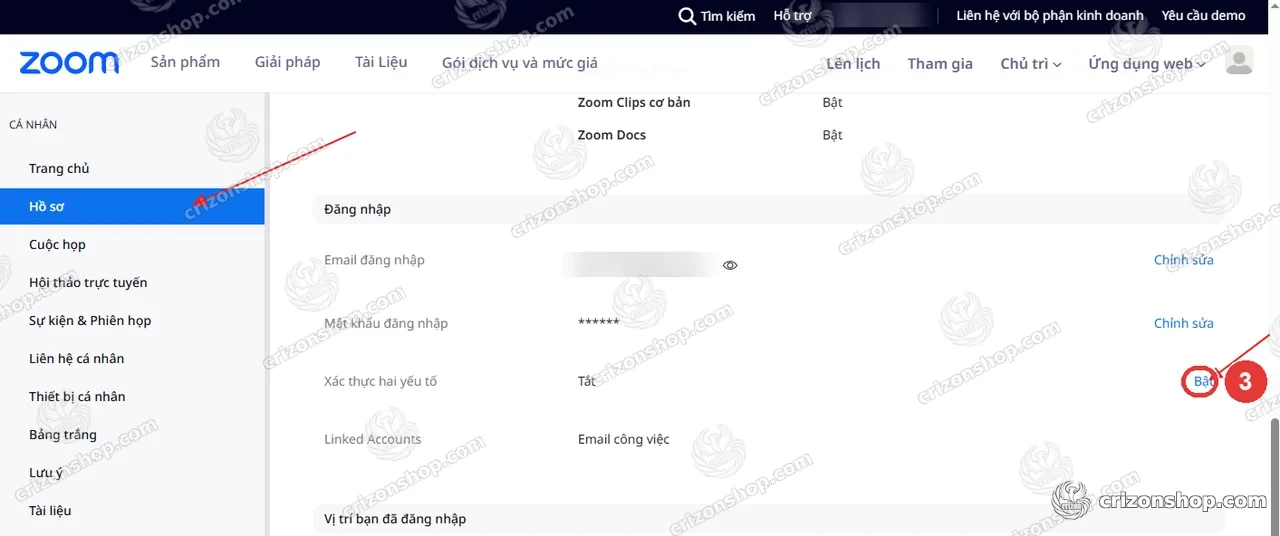
Click Turn On to enable two-factor authentication. Enter your password when prompted, then click Next.
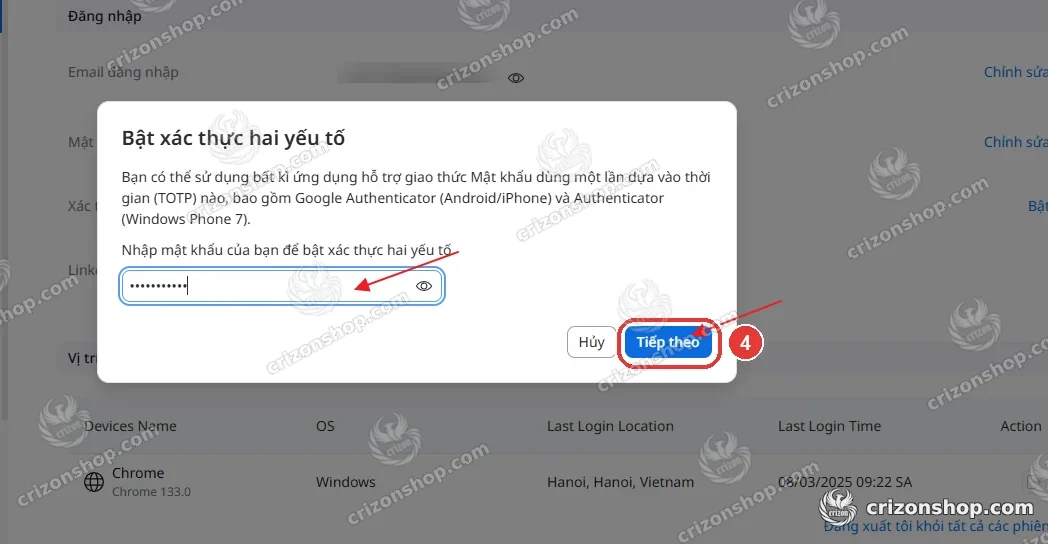
Enter your password, then click Next.
The Two-Step Verification section gives you two ways to get codes: Authentication App and Phone. Choose one of them in the next section.
Set up how you get your 6-digit codes
Option 1. Use an authenticator app
Click Set Up to the right of Authentication App.
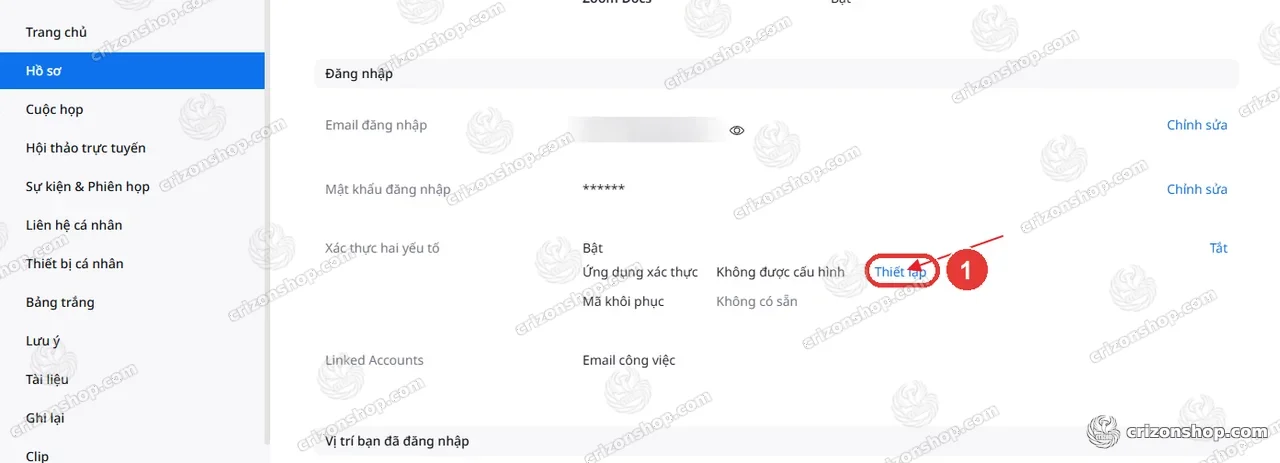
Click Set Up next to Authentication App to configure your authenticator app. Enter your Zoom password again, then click Next.
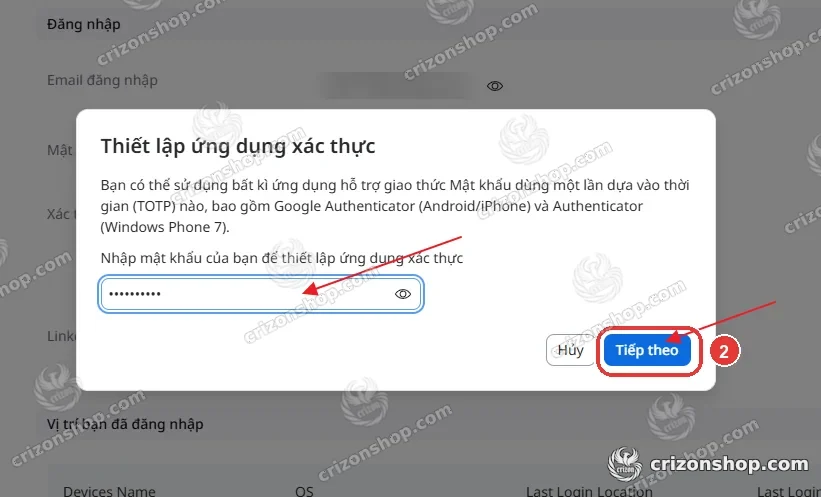
Enter your password again, then click Next. On your phone, open your authenticator app, add a new account, then scan the QR code shown on the Zoom website.
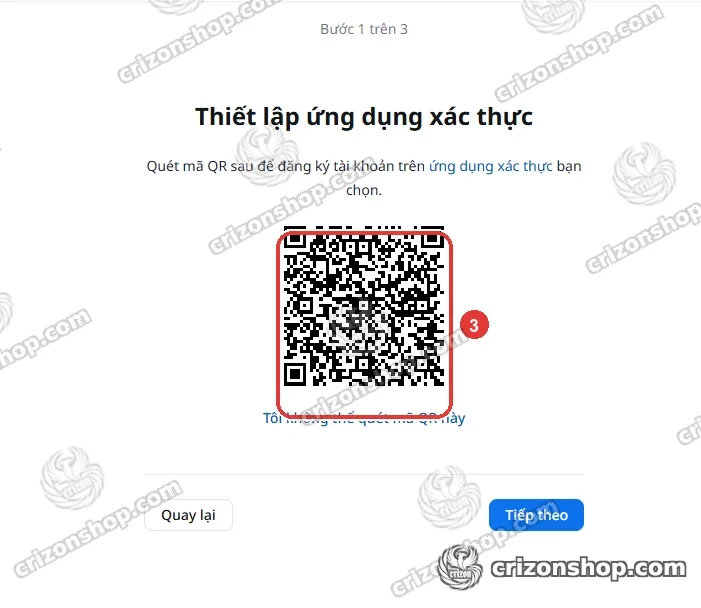
Scan the QR code with the authenticator app on your phone. Go back to the Zoom website and click Next.
Enter the 6-digit code that the app just generated for Zoom, then click Verify.
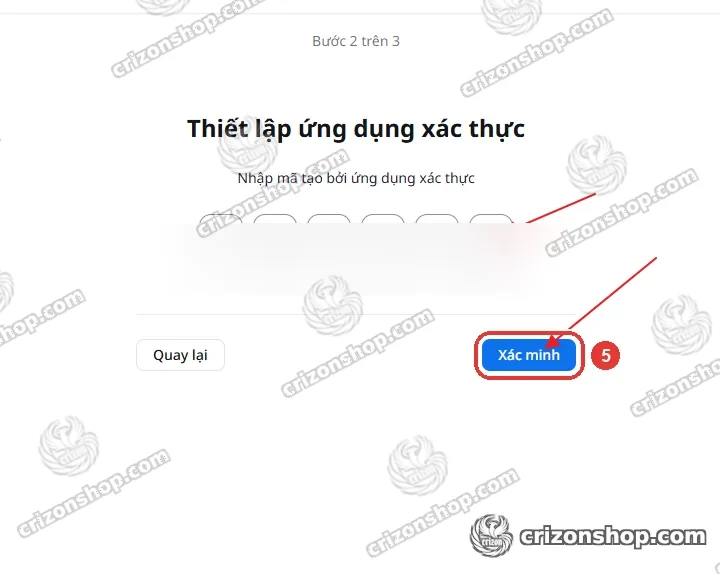
Enter the 6-digit code, then click Verify. Zoom shows a list of recovery codes. Click Download or Print to save them.
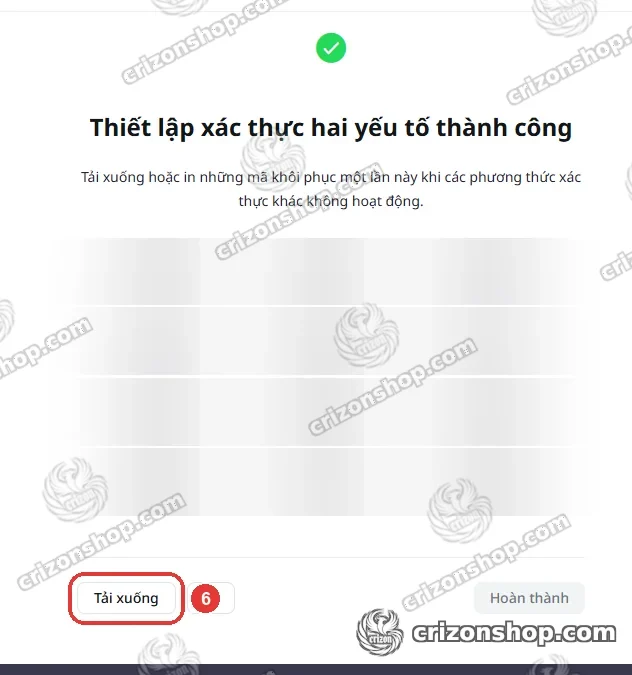
Click Download to save your recovery codes. Click Done to finish.
Option 2. Get codes by text message or phone call
Click Set Up to the right of Phone.
Enter your Zoom password when prompted.
Choose your country code. For a Vietnamese number, it's +84.
Enter your phone number without dashes.
Choose Text message (SMS) to get a text or Phone call to get a call, then click Send code.
Enter the 6-digit code you received, then click Verify.
Click Download or Print to save your recovery codes, then click Done.
Save and view your recovery codes
Recovery codes are your backup way in if you lose or break your phone. You can use each code only once. Once you use a code, it stops working.
- Keep the code file somewhere other than the phone that has your authenticator app. A password manager or a printed copy kept somewhere safe both work.
- Mark the codes you've used so you don't enter one by mistake next time.
- To see the list again, go to the Profile page, find Two-Step Verification, and click View Codes next to Recovery Codes.
Sign in when you don't have your phone
This works on the Zoom website and in the Zoom desktop and mobile apps.
Enter your email and password as usual.
When you're asked for a verification code, click Try another way at the bottom of the screen.
Choose Recovery codes.
Enter a recovery code you haven't used yet, then click Verify.
Once you're signed in, set up the authenticator app again on your new phone. That way, you won't gradually use up the rest of your recovery codes.
Turn off two-step verification
Go to the Profile page and find the Sign In section.
Click Turn Off to the right of Two-Step Verification.
Enter your password, then click Turn off in the confirmation box.
FAQ
According to Zoom, this option is for accounts that sign in with email and password. If you sign in to Zoom with Google, Apple, Microsoft, or your company's SSO, turn on two-step security for that account instead. If your company or school gave you your Zoom account, an admin may manage this setting, so check with them first.
If your account belongs to an organization, ask your admin to reset your two-step verification. The next time you sign in, Zoom will ask you to set it up again from scratch. If you signed up for the account yourself, contact Zoom Support at support.zoom.com to get help regaining access.
No, unless your organization's admin requires it. Without it, Zoom may still email you a one-time code if it detects an unusual sign-in. Even so, two-step verification is safer because nobody can get into your account with just your password.
Related guides
How to Sign In to Zoom Pro on the Web, Desktop, and MobileHow to Activate Zoom Pro via Email Invitation and Check Your LicenseHow to Activate IObit Driver Booster PRO with a License CodeStill need help?
Send your order code and we can sort it out faster.
