 Zoom · Sign in
How to Sign In to Zoom Pro on the Web, Desktop, and Mobile
Go to zoom.us/signin or open the Zoom Workplace app, click Sign In, and enter the email and password of the account upgraded to Pro. Then open Profile to check whether the account has a Pro license.
This guide shows you how to sign in to a Zoom account upgraded to Pro in a browser, on a computer, and on a phone. It also shows you how to check whether the account has the Pro plan. If you can't sign in, the last section covers fixes based on Zoom's own guidance.
Before you sign in
- The email and password of the Zoom account that was upgraded to Pro. If you signed up with Google, Apple, Facebook, or Microsoft, sign in the same way again.
- A web browser on a computer, or the Zoom Workplace app (the current name of the Zoom app) from the Zoom Download Center, the App Store, or Google Play.
- Access to that email inbox, because Zoom may send a verification email when you sign in on a new device.
Sign in to Zoom
Open zoom.us/signin.
Enter your Zoom account email.
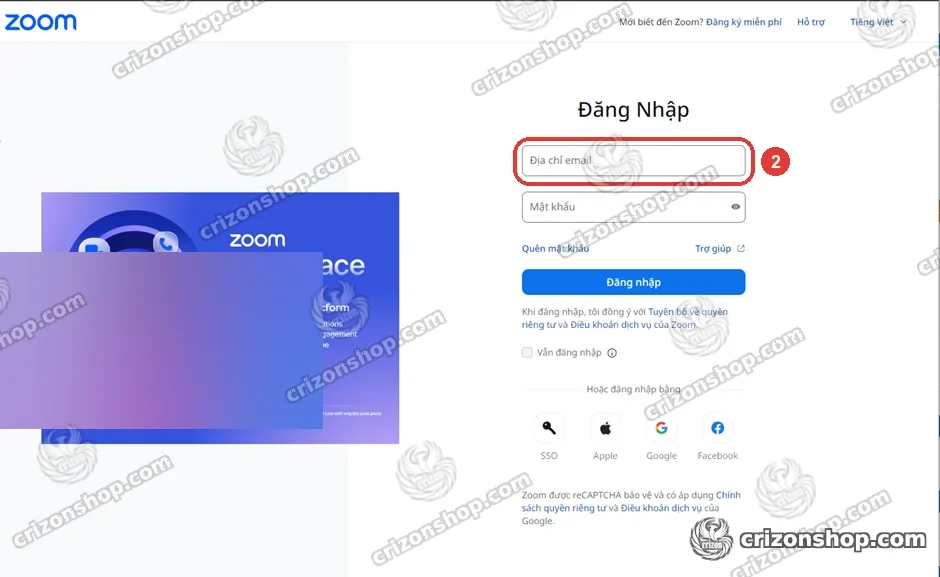
Enter your Zoom account email in the Email Address field. Enter your password when prompted.
Click Sign In.
If Zoom asks you to verify your account, open your inbox and follow the instructions in the email Zoom just sent.
Once you're signed in, you'll see your Zoom account page with a menu in the left column.
Open the Zoom Workplace app on Windows or macOS.
On the first screen, click Sign in.
Enter your email and password, then click Sign in.
If you signed up with Google, Apple, Facebook, or Microsoft, click the matching icon below the email and password fields, then confirm in the browser window that opens.
Open the Zoom Workplace app on your phone.
Tap Sign in.
Enter your email and password, then tap Sign in.
If you signed up with Google, Apple, Facebook, or Microsoft, tap that option instead of entering a password.
Check whether your account is on Pro
The most reliable way to check is on the Zoom website. It shows your account type and all the licenses you have.
Sign in at zoom.us/signin.
Click your profile picture or initials in the top-right corner.
Select Profile.
Look at the Account section to see your licenses. With a paid license, Zoom Meetings shows the maximum number of participants for meetings you host.
To see your account type, click Account profile in the left menu and check the Basic Information section.
If you can't sign in
Forgotten or incorrect password
Open Zoom's password reset page, enter the email linked to your account, and follow the instructions in the email Zoom sends you. After you change it, use the new password to sign in on your other devices.
No verification email
- Wait a few more minutes, because some email providers deliver messages slowly.
- Check your Spam or Junk folder.
- If you use a work or school email, ask your IT team to allow mail from
[email protected].
Correct details, but you still can't sign in
- Check your internet connection.
- Update Zoom Workplace to the latest version, or uninstall and reinstall it.
- Clear the app's or browser's cache and cookies, then restart your device or browser.
- Try signing in on another device, or with another sign-in method your account supports.
For more help, see Troubleshooting sign-in issues on Zoom's support site.
Frequently asked questions
Zoom Workplace is the current name of the Zoom app for computers and phones. If you still have an older version of Zoom, update to the latest one. You sign in the same way, with the same email and password.
The 40-minute limit applies to accounts with only a Basic license. Check that you're signed in with the upgraded email and that the meeting was created by that same account. Then open Profile on the web as described above. If the website shows a paid license but the app doesn't, sign out of the app and sign back in.
According to Zoom's support site, phone number sign-in currently works with US phone numbers. If you have a Vietnamese number, sign in with your email or with a linked Google, Apple, Facebook, or Microsoft account.
Search your inbox for the welcome email or an invoice from Zoom to find out which email is linked to the account. Then try signing in with that email and your password. If that doesn't work, try the Google, Apple, Facebook, and Microsoft buttons for that email one at a time.
Related guides
How to Turn On Two-Step Verification and Get Recovery Codes for ZoomHow to Activate Zoom Pro via Email Invitation and Check Your LicenseHow to Activate IObit Driver Booster PRO with a License CodeStill need help?
Send your order code and we can sort it out faster.
