 ChatGPT · Sign in
How to Turn On Two-Factor Authentication for ChatGPT with an Authenticator App
In ChatGPT, go to Settings › Security and login and turn on Authenticator app. Scan the QR code with Google Authenticator or Authy, then enter the 6-digit code to finish. Keep your recovery code somewhere safe.
This guide shows you how to turn on multi-factor authentication (MFA) for your ChatGPT account with a code-generating app on your phone, such as Google Authenticator, Microsoft Authenticator, or Authy. Once MFA is on, you'll enter a 6-digit code from the app every time you log in. Even if someone knows your password, they'll have a hard time getting into your account.
What you'll need
- A phone with an authenticator app installed, such as Google Authenticator, Microsoft Authenticator, or Authy. Any app that generates time-based 6-digit codes will work.
- A browser that's logged in to ChatGPT at chatgpt.com.
- A safe place to keep your recovery code, such as a password manager or a private notebook.
Set up an authenticator app in ChatGPT
Open chatgpt.com in your browser and log in to your account.
Click your profile picture or account name in the left sidebar, then select Settings.
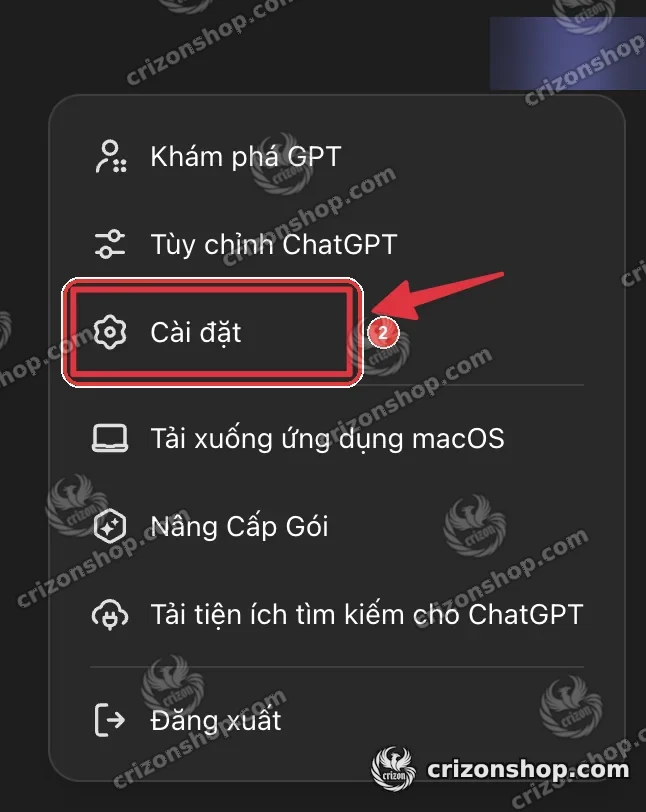
Click Settings. Select Security and login.
Find the Multi-factor authentication (MFA) section, select Authenticator app, and turn it on.
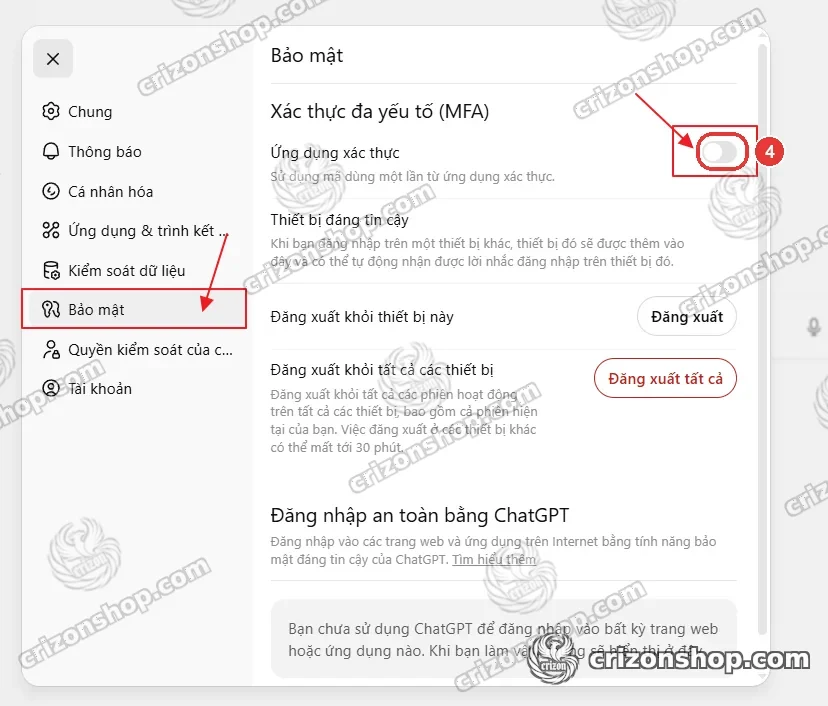
Turn on the Authenticator app toggle under Multi-factor authentication (MFA). Open the authenticator app on your phone, choose to add a new account, then scan the QR code shown in ChatGPT.
To finish, enter the 6-digit code from the app in the verification field in ChatGPT.
When ChatGPT shows your recovery code, copy it and store it in the safe place you prepared.
Can't scan the QR code?
You might be using ChatGPT on the same phone that has your authenticator app, or your camera might not pick up the code. In either case, you can enter the secret key instead of scanning.
On the QR code screen, click Trouble scanning? to show a secret key made of letters and numbers.
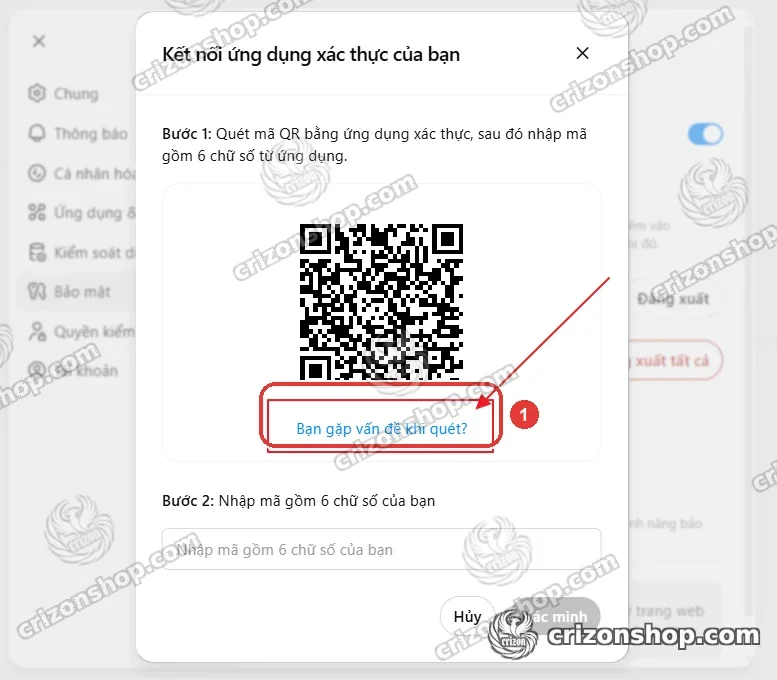
Click Trouble scanning? to show the secret key. Copy the key.
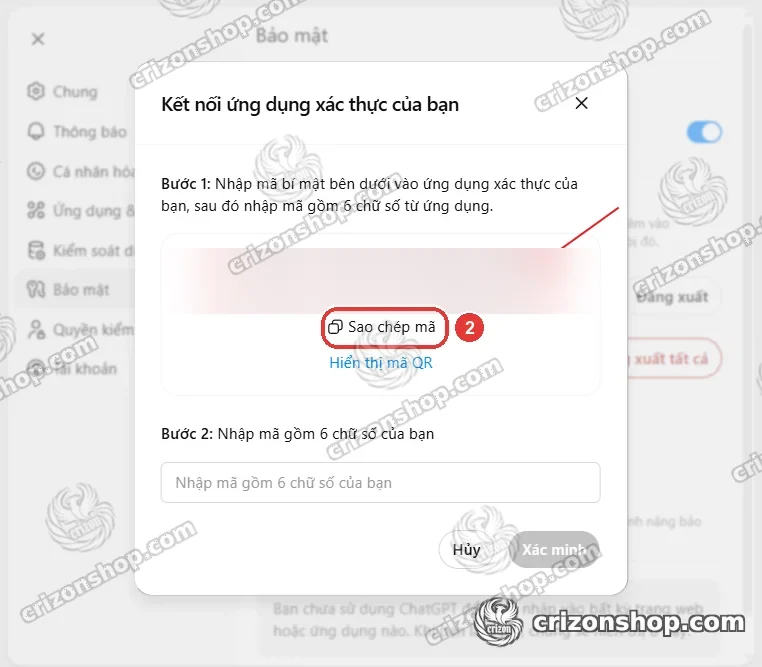
Click the copy button to copy the key. In your authenticator app, choose the option to add an account by entering a key (Google Authenticator calls it Enter a setup key).
Give the account an easy-to-recognize name like
ChatGPTand paste the key. If the app asks for the code type, choose time-based.To finish, enter the 6-digit code from the app in ChatGPT.
Log in after MFA is on
Log in to ChatGPT as usual, with the same method you always use for this account.
When you're asked to verify your identity, open your authenticator app and enter the 6-digit code shown for ChatGPT.
If you can't use the app right then, click Try another method below the Continue button. Then choose Recovery code or Email, depending on which methods your account has.
Turn off MFA or move it to a new phone
To turn MFA off or set it up again, go to Settings › Security and login. Under Multi-factor authentication (MFA), select the Authenticator app method to manage or turn it off. When you switch phones, the simplest way is to turn authenticator app MFA off and back on, then scan the new QR code with your new phone. Do this while you can still log in. Don't wait until you've deleted the app from your old phone.
Frequently asked questions
On the verification screen, click Try another method, then choose Recovery code or Email if your account has them. If neither option works, contact OpenAI support at help.openai.com. After you verify your identity, OpenAI will email you a one-time recovery login. Once you're in, add a backup method or turn off MFA in Settings › Security and login. If CrizonShop provided your account, contact us first. Click Report a problem on the product in your order or message Chat with Support.
Yes. MFA applies to all OpenAI services that use the same account, including ChatGPT and the API Platform. You'll use the same authenticator app to log in to both.
The code in the app changes about every 30 seconds. If the code is about to expire, wait for a new one and enter it again. Also check that your phone's time is set automatically. If the clock is off by a few minutes, the codes won't match. If your app has several entries, make sure you use the code from the ChatGPT or OpenAI entry.
No. You can use Google Authenticator, Microsoft Authenticator, Authy, or any other app that generates time-based 6-digit codes with ChatGPT.
Related guides
How to Log In to Your Private ChatGPT Plus Account How to Sign In to Perplexity and Check Your Pro Plan
 How to Sign In to Copilot Pro with Your Microsoft Account
Still need help?
Send your order code and we can sort it out faster.
