 Copilot · Sign in
How to Sign In to Copilot Pro with Your Microsoft Account
Go to copilot.microsoft.com, click Sign in, and use the Microsoft account that has your Copilot Pro plan. If Microsoft asks, add a backup email or phone number and enter the verification code.
This guide shows you how to sign in to Copilot with the Microsoft account that has your Copilot Pro plan. It also covers the screen that asks for extra security info and how to check that the Pro plan is on the right account.
Before you sign in
Sign in to Copilot
Open copilot.microsoft.com in your browser.
Click Sign in in the top-right corner.
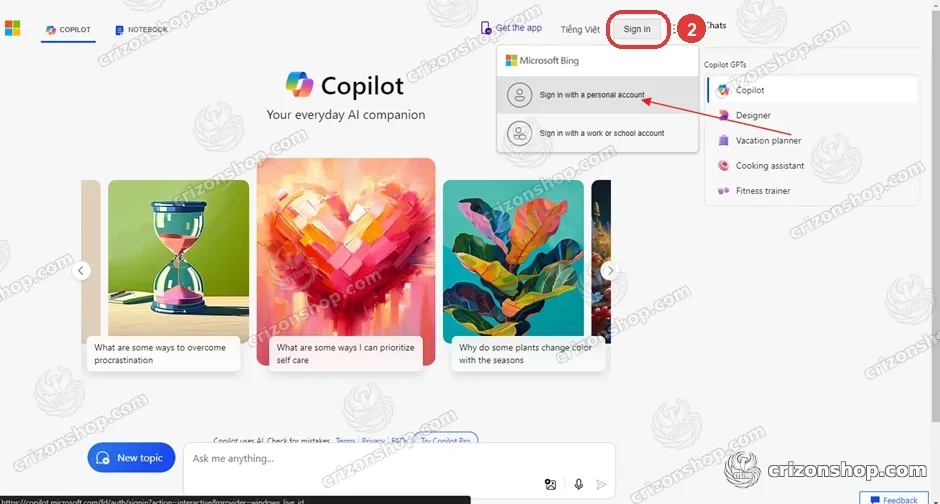
Click “Sign in” to sign in. Enter the email for the Microsoft account that has Copilot Pro, then click Next.
Enter your password and click Sign in.
If Microsoft asks for more security info or a verification code, continue with the section below.
Open the Copilot app on your PC. If you don't have it yet, download it from the Microsoft Store.
Choose to sign in from within the app.
Sign in with the Microsoft account that has Copilot Pro. The Windows app only accepts Microsoft accounts.
Complete verification if prompted.
Download the Microsoft Copilot app from the App Store or Google Play.
Open the app and choose to sign in.
Choose Microsoft account, then enter the email and password for the account that has the Pro plan.
Complete verification if prompted.
If Microsoft asks you to protect your account
After you enter your password, you may see a Help us secure your account or Let's protect your account screen. Microsoft shows this when your account needs an extra verification method to make sure it's really you signing in.
Enter a backup email or phone number to receive a code.
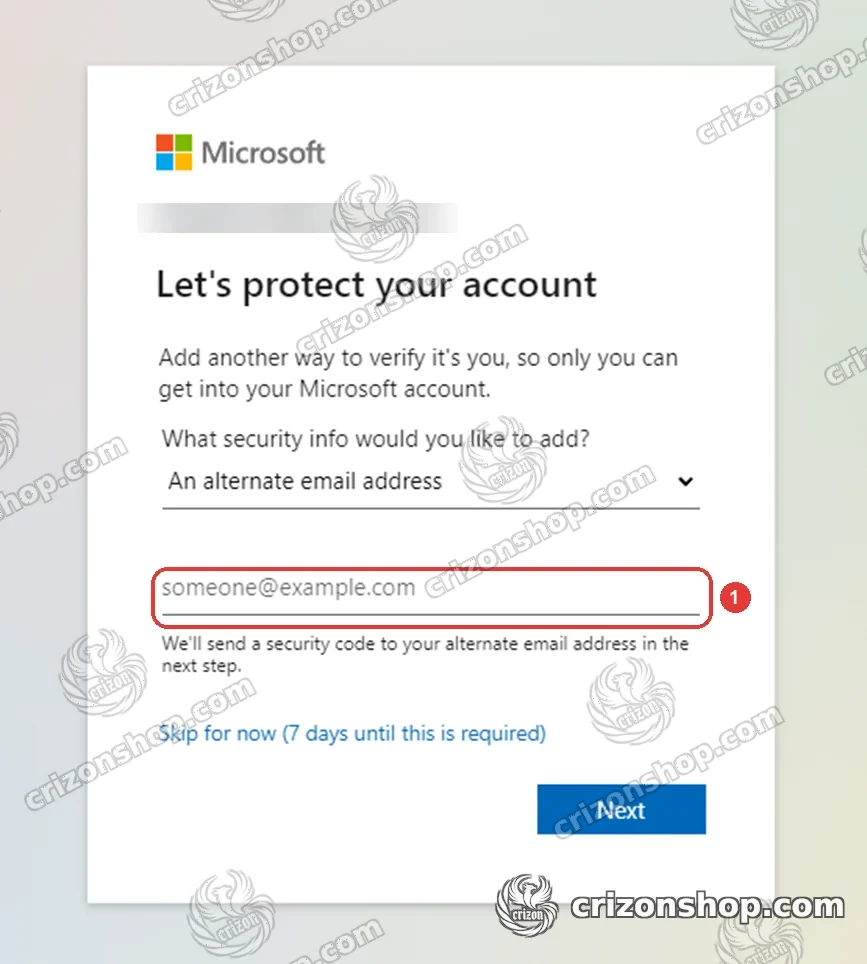
Enter your backup email in the “[email protected]” box to get a code. Click Next.
Open the email or text message you just received to get the verification code.
Enter the code on the screen and click Verify.
Once you're verified, you'll be taken back to Copilot, signed in.
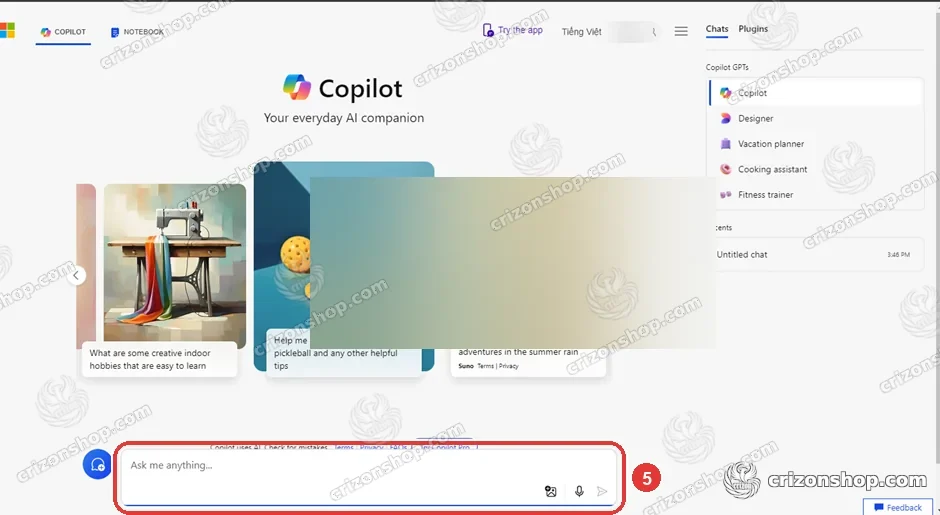
Click “Ask me anything...” to type your question.
Check the Copilot Pro plan on your account
If you're signed in but not sure the account has the Pro plan, check directly on the Microsoft account management page.
Open Microsoft's Services & subscriptions page.
Sign in with the same Microsoft account you just used for Copilot.
Look through the list of subscriptions. If Copilot Pro shows as active, your account has Pro benefits.
On Windows 11, you can also open Start and select your account name to see your current plan.
Frequently asked questions
This usually means you're signed in with a different account from the one that has the plan. Sign out, sign back in with the Microsoft account that subscribed to Copilot Pro, then open Services & subscriptions to make sure the plan is still active.
Check the spam folder of your backup email, double-check the email address or phone number you entered, then request a new code. Microsoft has a verification code troubleshooting page for more specific cases.
On the web, mobile, and macOS, Copilot lets you sign in with a Microsoft account, an Apple ID, or a Google account. The Copilot app on Windows requires a Microsoft account. To use your Copilot Pro benefits, sign in with the same Microsoft account that subscribed to the plan.
No. Microsoft has stopped selling Copilot Pro and replaced it with Microsoft 365 Premium, a plan that combines Copilot Pro features with Microsoft 365 Family. Current Copilot Pro subscribers can switch to Premium right from their Microsoft account.
Related guides
 How to Sign In to Perplexity and Check Your Pro Plan
 How to Log In to Your Private ChatGPT Plus Account
 How to Log In to Genspark AI with Your Google Account
Still need help?
Send your order code and we can sort it out faster.
