 Genspark · Sign in
How to Log In to Genspark AI with Your Google Account
Open the Genspark login page, click Continue with Google, and choose your Google account. Log in the same way every time, because a Google account doesn't have its own Genspark password.
This guide shows you how to log in to Genspark AI in your browser with your own Google account. It also includes a few tips to keep you from creating a second Genspark account by mistake.
Before you log in
Log in to Genspark with Google
Open the Genspark login page in your browser.
Click Continue with Google.
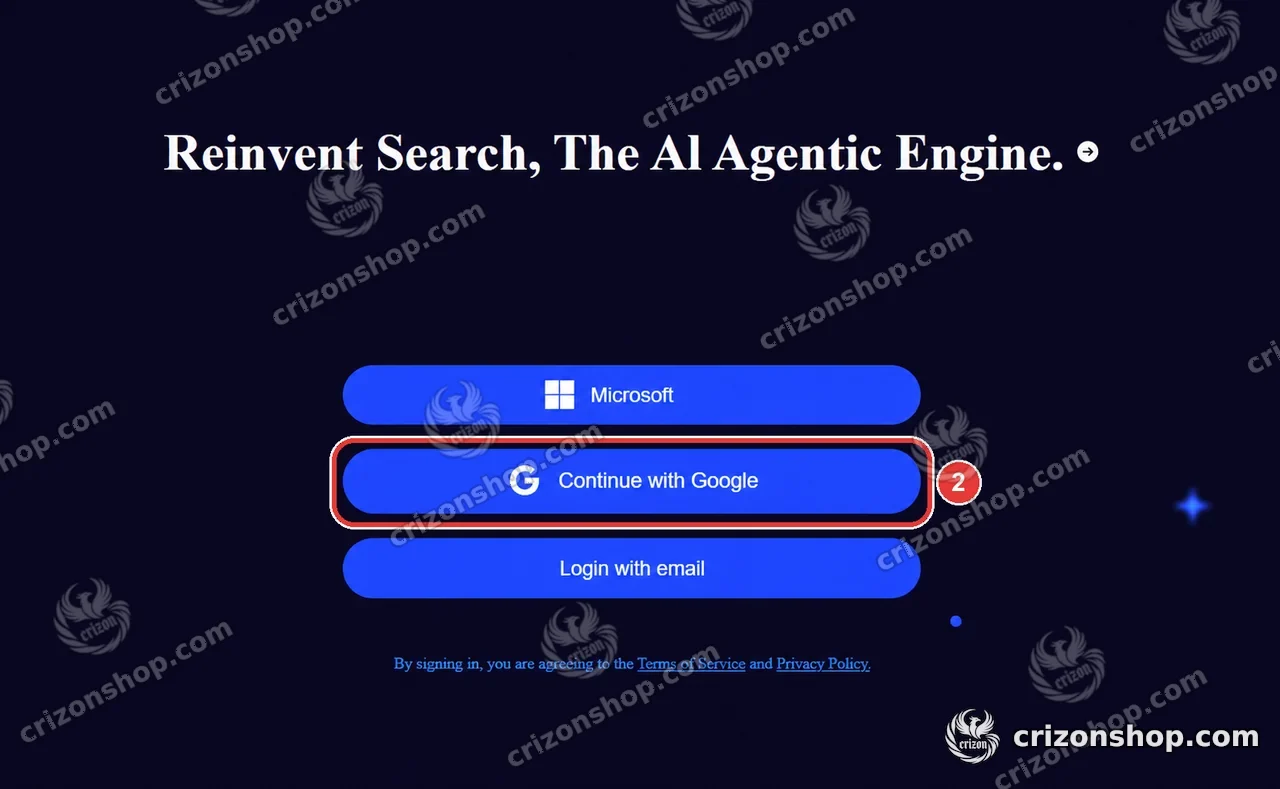
Click the Google button (Continue with Google). Choose the Google account you want to use from the list. If it isn't listed on this device, click Use another account.
Enter your Google password, and a verification code if Google asks for one.
If a confirmation screen appears, allow Genspark to use your Google name and email address.
Wait for your browser to take you back to Genspark. When the main page loads and the login button no longer appears, you're logged in.
Why Google accounts have no Genspark password
If you created your account with Google, it doesn't have a Genspark password, and you can't add one. The password you enter during login is your Google password, and Google checks it. To change your password or add security settings, use your Google Account settings.
Other ways to log in
Besides Google, Genspark lets you log in with Apple or with an email and password. As a rule, keep using the login method you chose the first time.
| Login method | What to do on the login page | What to remember |
|---|---|---|
| Click Continue with Google | No separate Genspark password | |
| Apple | Click Continue with Apple | Always choose the Apple ID you used the first time |
| Email and password | Enter your Genspark email and password | The verification email may go to your Spam folder |
What to do if you can't log in
Try the fixes below in order, and try logging in again after each one.
Clear your browser's cache and cookies for genspark.ai.
Open a private (incognito) window or switch to another browser, then log in again.
Turn off ad-blocking or cookie-blocking extensions for now.
If you see a 401 error, your old login session has expired. Log out fully, then log back in.
Make sure the Gmail address you're choosing is the one you used to create the account. Your payment receipts may go to a different email address.
If you've tried all of these steps and still can't log in, contact the Genspark support team through Support in the app. Include your login email, your device and operating system, your browser name and version, when the error happened, and a screenshot of the error message. Never send your password. For more help, see the Genspark Troubleshooting Guide.
Frequently asked questions
You're probably in a different Genspark account. Open the window that shows the plans. If your plan belongs to another account, you'll see You have memberships linked to other accounts with a partly hidden email address. Log out, then log back in with that address and the login method you used the first time.
Yes. You can stay logged in on several devices at once. To see your devices or log some of them out, go to Settings › Account › Manage Login Sessions.
If you created your account with Google, it has no Genspark password to reset. Just click Continue with Google as usual. If you forgot your Google password, recover it on Google's sign-in page, then go back to Genspark.
No. Your data and plan are still in your original account. Log out of the empty account. Then click Continue with Google and choose the Gmail address you used the first time.
Related guides
 How to Sign In to Perplexity and Check Your Pro Plan
 How to Log In to Your Private ChatGPT Plus Account
 How to Sign In to Copilot Pro with Your Microsoft Account
Still need help?
Send your order code and we can sort it out faster.
