 Netflix · Sign in
How to Sign In to Netflix with a Password on Phone, Computer and TV
Open Netflix, enter the account email and tap Continue. Then choose Get Help › Use password instead and enter the password CrizonShop provides in your order. You don't need to wait for the 4-digit code sent by email.
This guide shows you how to sign in to the Netflix Premium account you bought from CrizonShop with an email and password on your phone, computer or TV. The steps follow Netflix's sign-in help page. The only difference is that you use a password instead of waiting for a code.
Get the account details from your order
Sign in to crizonshop.com with the account you used to buy.
Go to Account › My orders and open your Netflix Premium order.
Copy the Netflix email and password from the order. These details are also sent to your email.
For a version with screenshots, open the Guide section in the order details.
This plan works on one device, so decide first whether you'll watch on your TV, phone or computer. Then sign in only on that device.
Sign-in steps for each device
The button names below come from Netflix's English interface. If your app uses another language, tap the button that means the same thing, such as Sign In, Continue or Get Help in your language.
Open the Netflix app and tap Sign In.
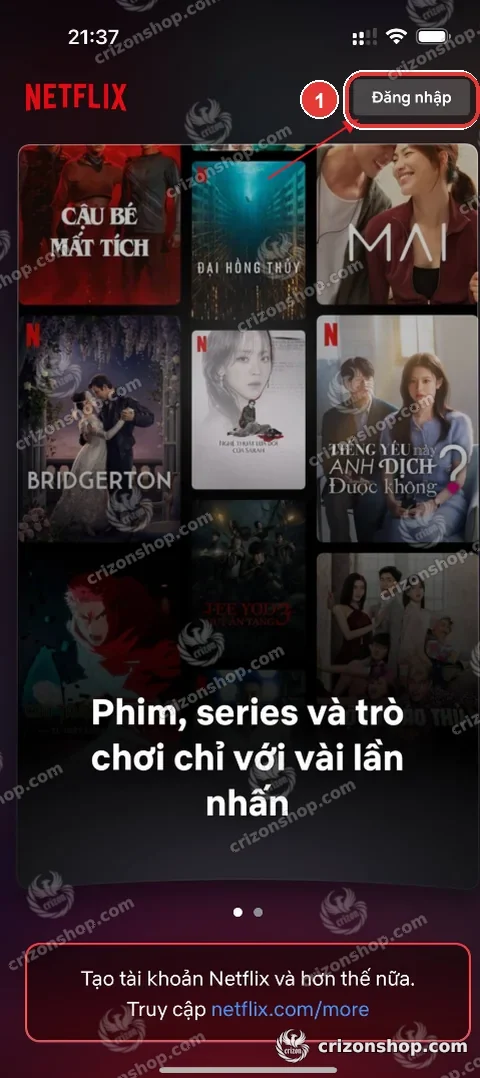
Tap “Sign In” to continue. Enter the account email from your order, then tap Continue.
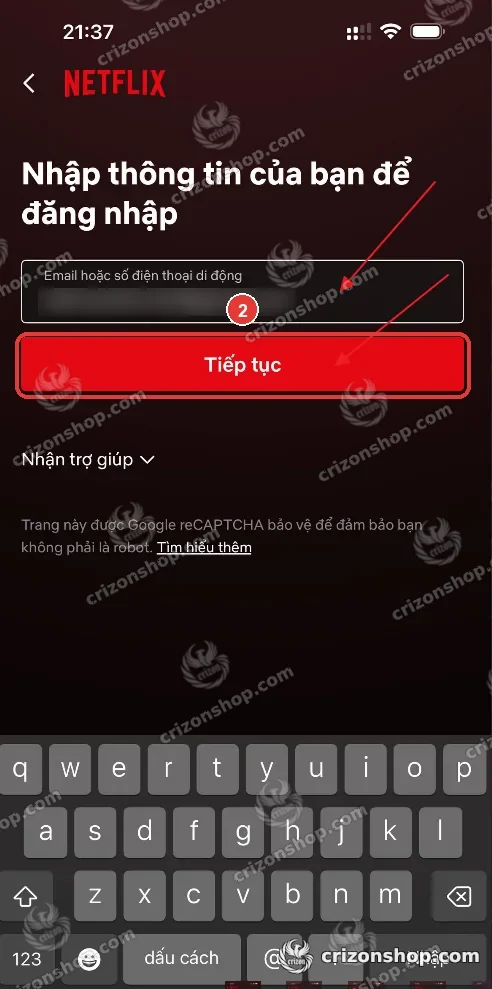
Enter the account email, then tap “Continue”. When Netflix asks for a code, tap Get Help to see more options.
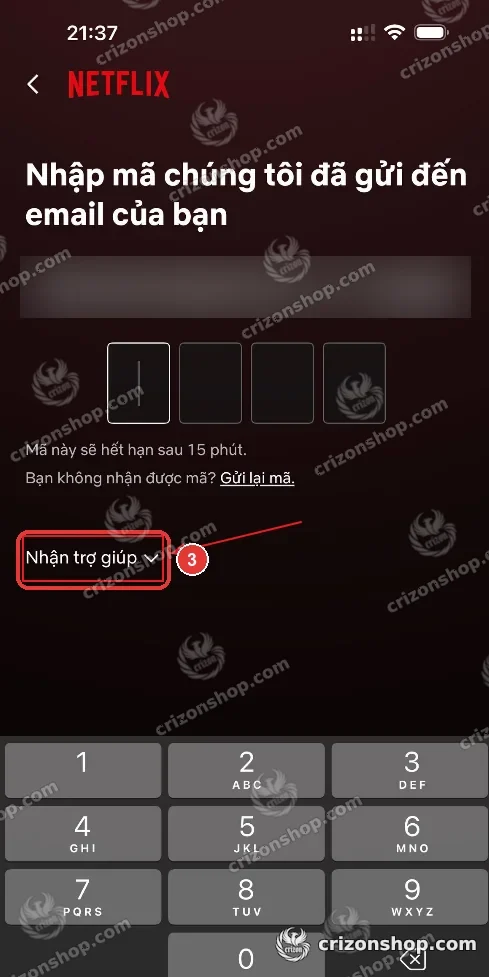
Tap “Get Help” to see more options. Tap Use password instead.
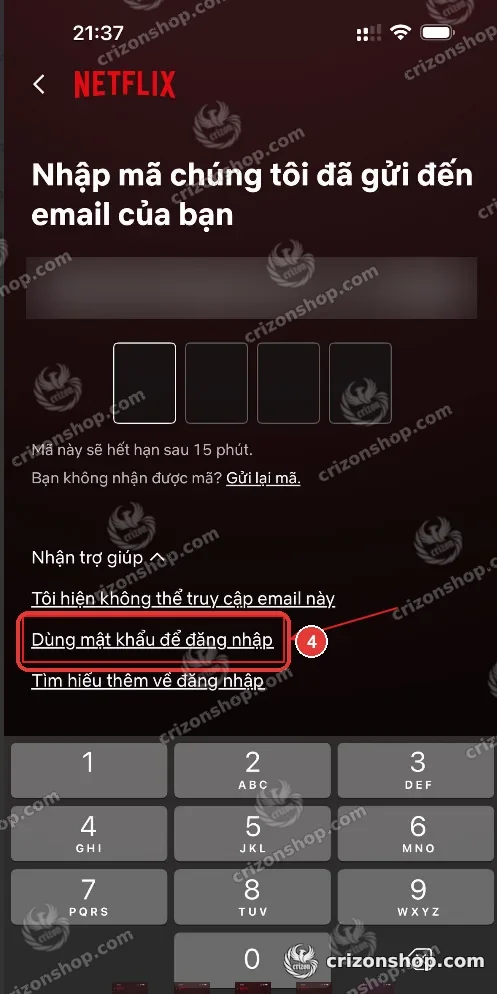
Tap “Use password instead”. Enter the password from your order, then tap Sign In.
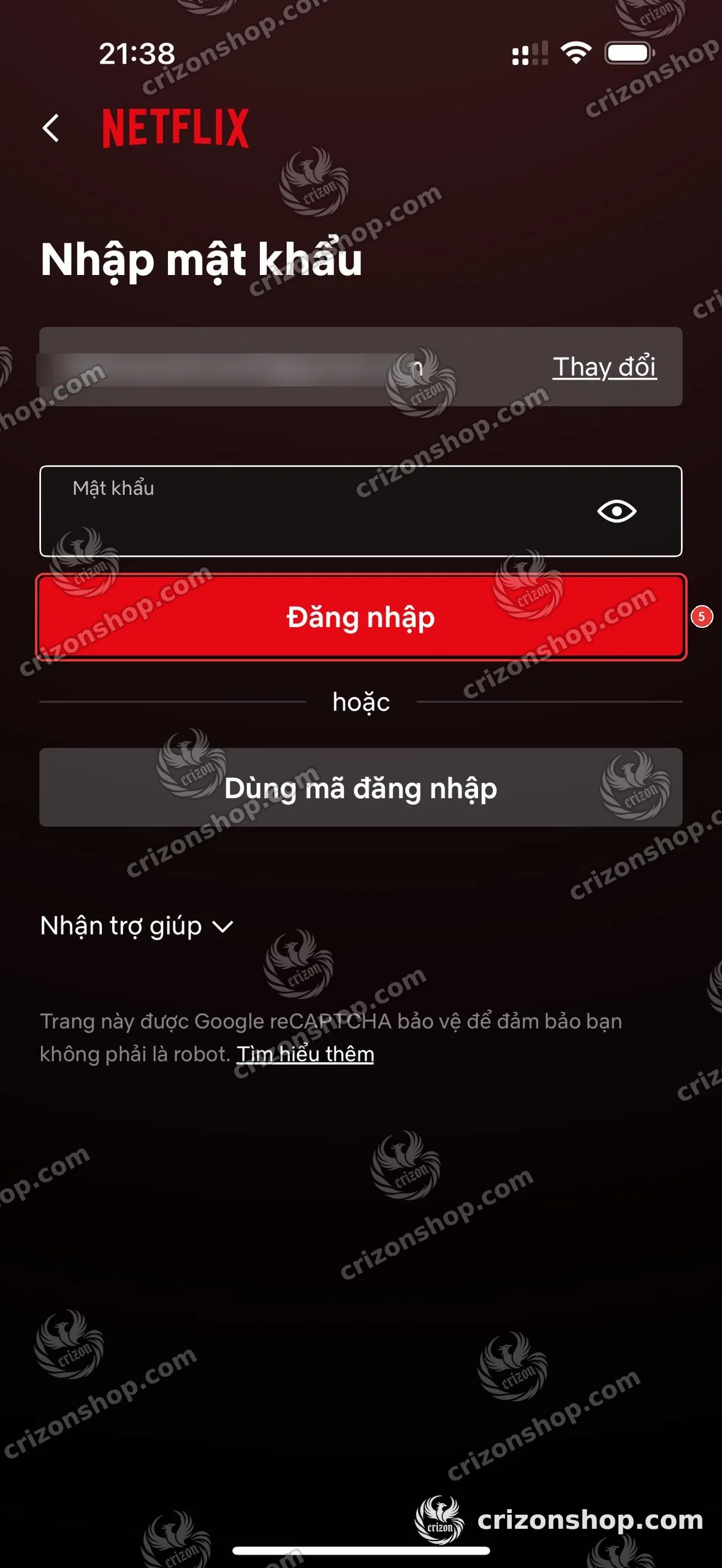
Enter the password, then tap “Sign In”.
Open your browser and go to netflix.com/login, or open the Netflix app on Windows.
Enter the account email, then click Continue.
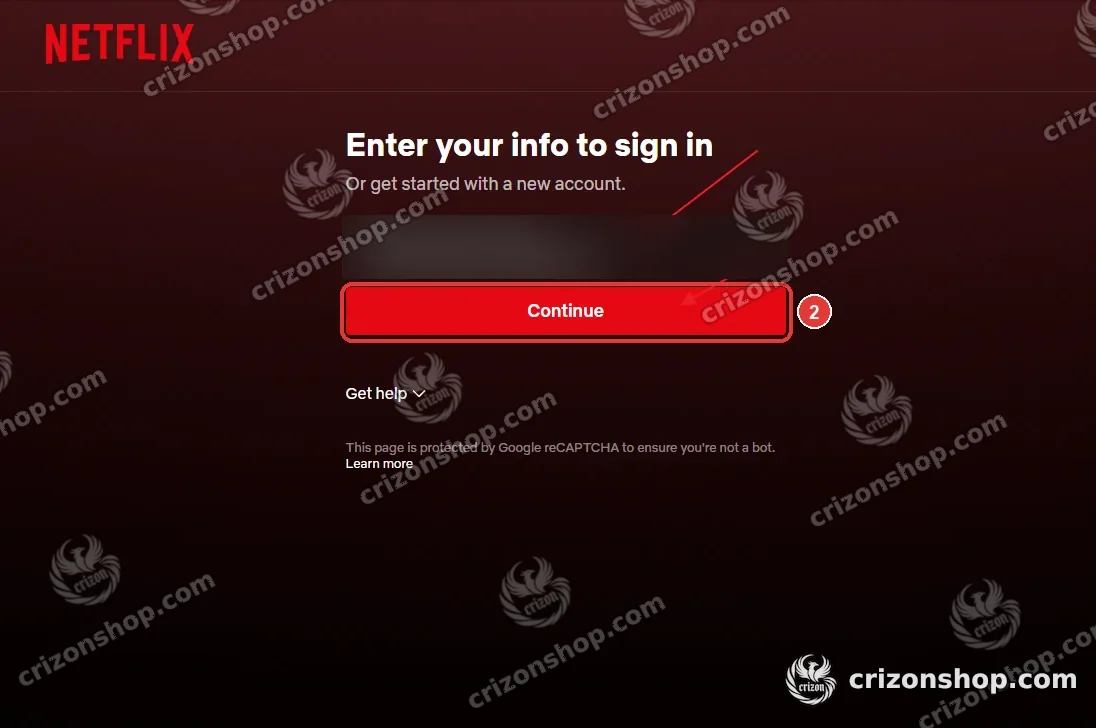
Click “Continue” after entering the email. Click Get Help to open the menu.
Click Use password instead.
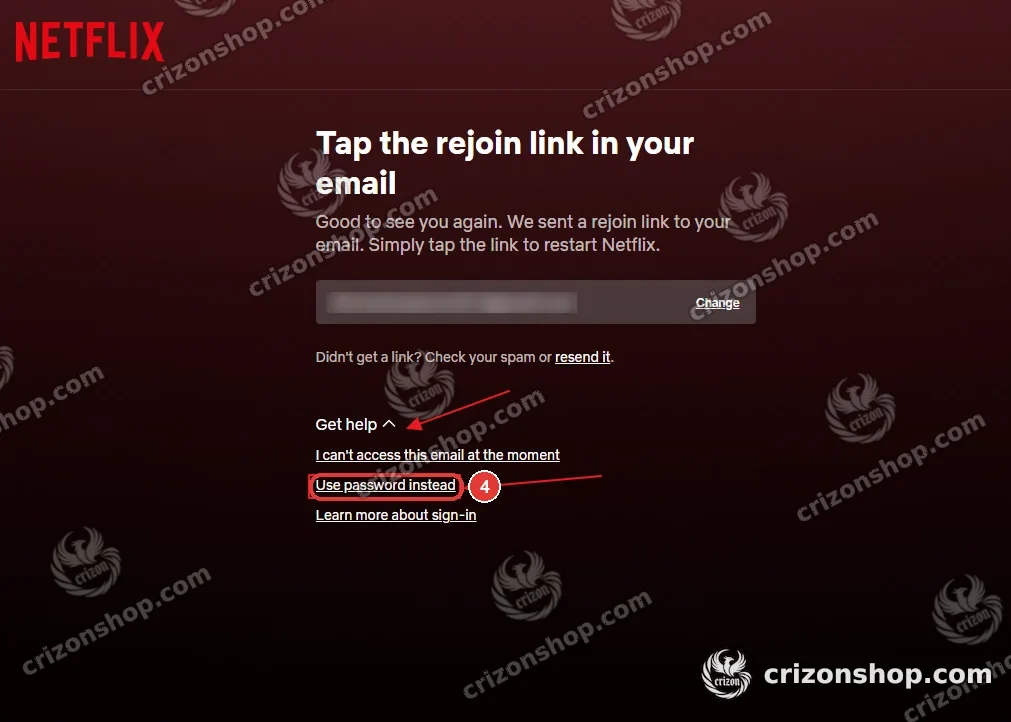
Click “Use password instead”. Enter the password, then click Sign In.
Open the Netflix app on your TV and select Sign In.
If the TV shows a QR code, switch to Use Remote to enter your details with the remote.
Enter the account email, then select Next.
Select Use Password Instead, not Send Sign-In Link.
Enter the password with your remote and confirm to open Netflix.
After you sign in
4K, HDR and spatial audio only work when both your device and the title you're watching support them.
If Netflix shows an error when you sign in
The table below lists common messages from Netflix's sign-in code troubleshooting page and what to do about each one on a dedicated account.
| Netflix says | What to do |
|---|---|
| Incorrect code | Skip the code. Go back and choose Get Help › Use password instead |
| Something went wrong | You've tried too many times. Wait a while, then sign in again with the password |
| Couldn't send code or Cannot send another code | Choose to sign in with the password. You don't need a code |
| New to Netflix? | Netflix doesn't recognize the email, usually because of a typo. Copy the email from your order again and retry |
| Asks you to reset your password | Don't reset it yourself. Click Report a problem in the order so we can check it |
If you've followed the steps correctly and still can't sign in, open the order in Account › My orders and click Report a problem. You can also use Chat with Support in the corner of the screen on crizonshop.com.
FAQ
The code goes to the email or phone number linked to the Netflix account, not the email you used for your purchase. You don't need this code. Choose Get Help, then Use password instead, and enter the password from your order.
This message means Netflix hasn't linked your device to the account's Netflix Household yet. The verification code goes to the account owner's email, so you won't get it yourself. Don't keep requesting the code, because Netflix limits how many times you can do this each day. Click Report a problem in the order or use Chat with Support to get help. You can read more about this message on Netflix's help page.
The Netflix Premium plan from CrizonShop works on one device. If you want to switch to a different device, contact us through Chat with Support before you sign in on the new device, and we'll tell you what to do.
4K and HDR only appear when your device, screen and the title are all compatible. If you're watching on a phone or TV that doesn't support 4K, you can still watch normally, just not at that resolution.
Related guides
How to Sign Out of Netflix on Your TV Using the RemoteHow to Change Netflix's Language to Vietnamese and Choose SubtitlesHow to Set a PIN to Lock Your Netflix ProfileStill need help?
Send your order code and we can sort it out faster.
