 Netflix · Set up
How to Change Netflix's Language to Vietnamese and Choose Subtitles
Netflix saves language settings for each profile. Open your profile, go to Display Language on your TV or phone, or on the Account page on the web, choose Vietnamese, and save.

This guide shows you how to switch the Netflix interface to Vietnamese and set your preferred audio and subtitle languages for the profile you watch on. The steps are a little different on TV, phone, and browser, so just follow the section for the device you're using.
Before you start
Netflix saves the language for each profile separately, not for the whole account. So sign in and open your own profile before you change anything.
Sign in and open your profile
Open the Netflix app, or go to the Netflix sign-in page if you watch in a browser.
Paste the email and password from your order details, then select Sign In.
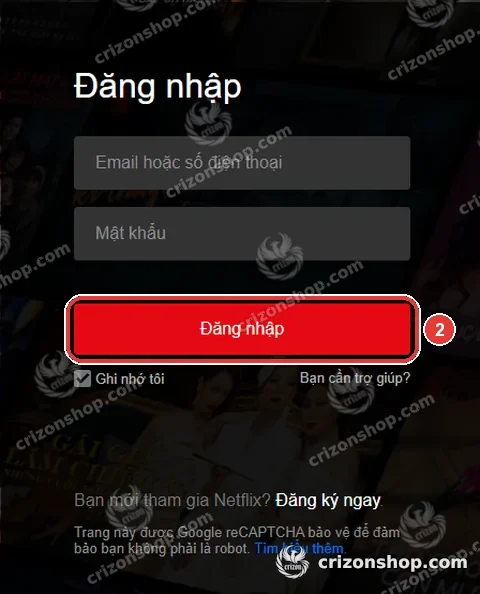
Paste your email and password, then select Sign In. On the profile screen, choose the profile you watch on.
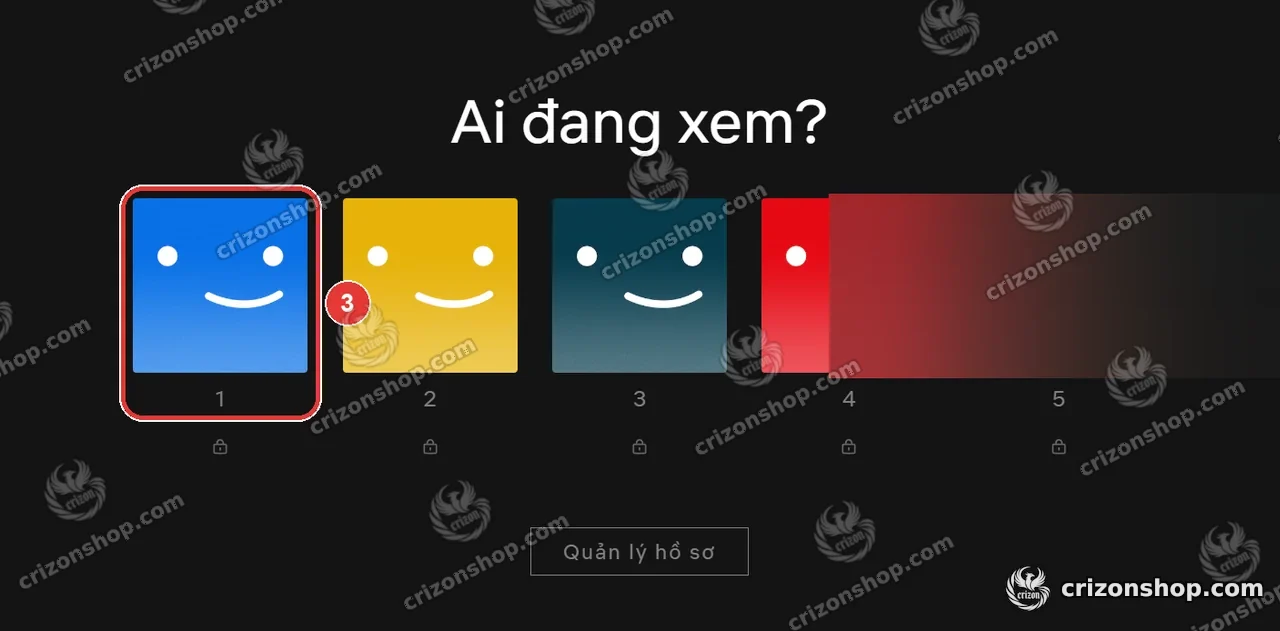
Choose profile 1 to start watching. If the profile has a lock icon, enter the 4-digit PIN to open it.
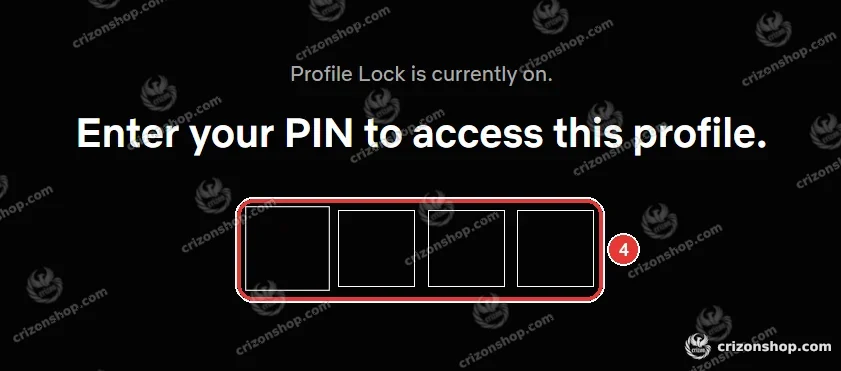
Enter the 4-digit PIN to open the profile.
Change the display language
The display language is the language used for menus, buttons, and title descriptions in the app.
Open Netflix and go back to the profile selection screen.
Move to your profile and select Edit.
Select Language.
Choose Tiếng Việt (Vietnamese) or whichever language you want. Your choice is saved right away.
Select Done to go back.
Open the Netflix app on Android, iPhone, or iPad.
Tap My Netflix in the bottom-right corner.
Tap your profile name at the top of the screen.
Tap Manage Profiles.
Choose the profile you're using.
Tap Display Language.
Choose Tiếng Việt (Vietnamese). The app saves your choice automatically.
Sign in at netflix.com and open your profile.

Click Home to open the Netflix home page. Open the Account page. You can also get there from the profile icon in the top-right corner.
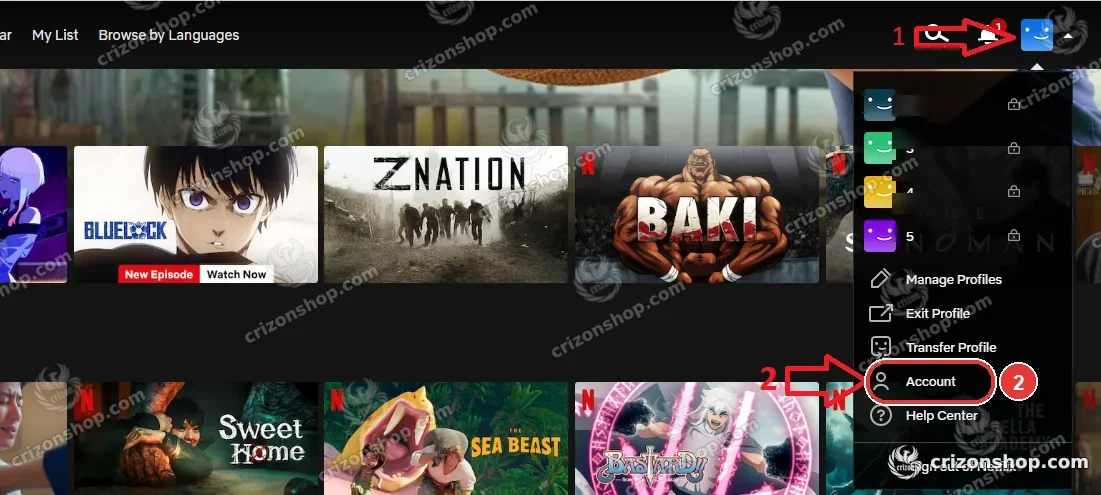
Click Account to open your account page. Select Profiles, then click your profile.
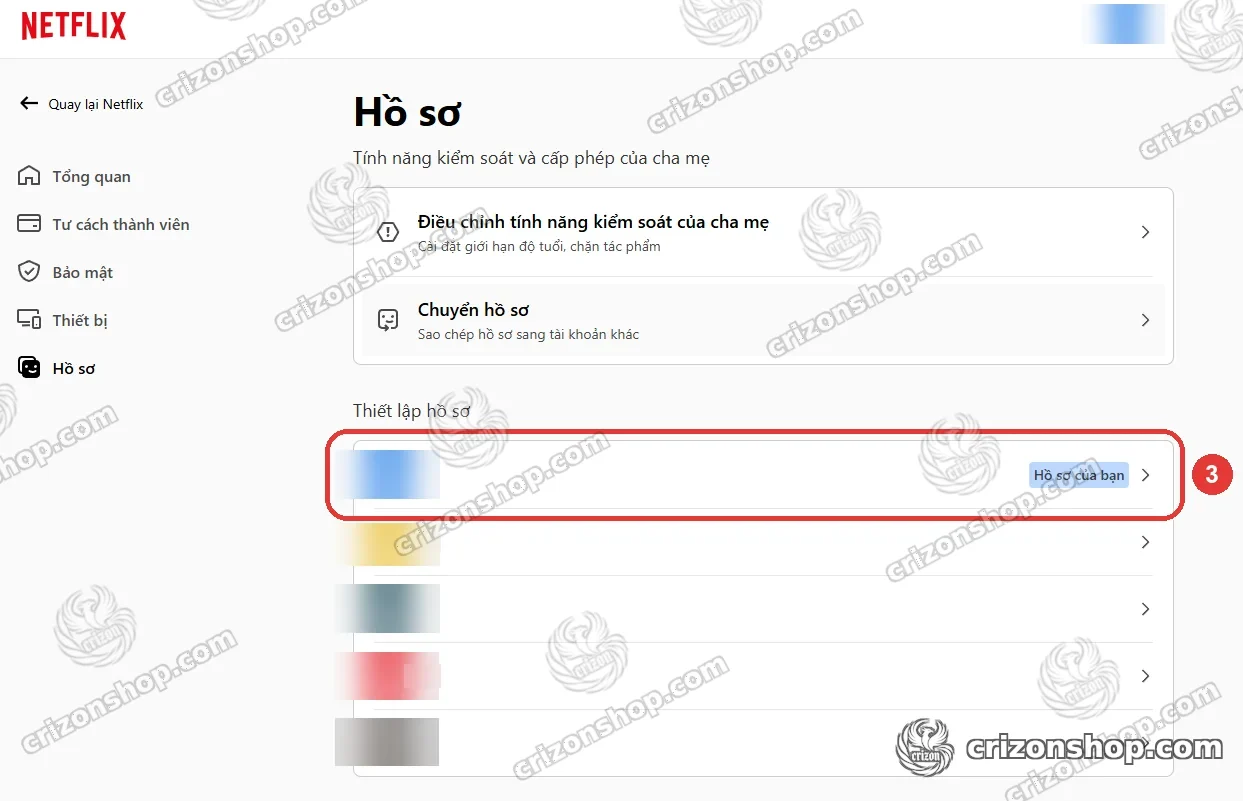
Under Profiles, click profile 1, marked Your profile. Select Languages.
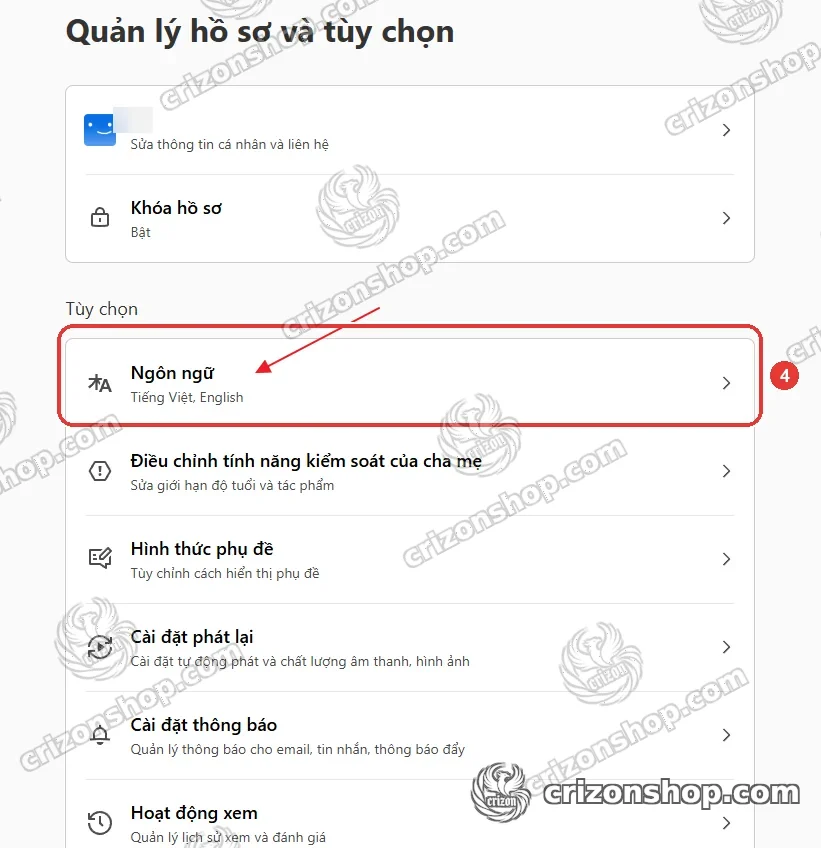
Click Languages. Under Display Language, choose Tiếng Việt (Vietnamese).
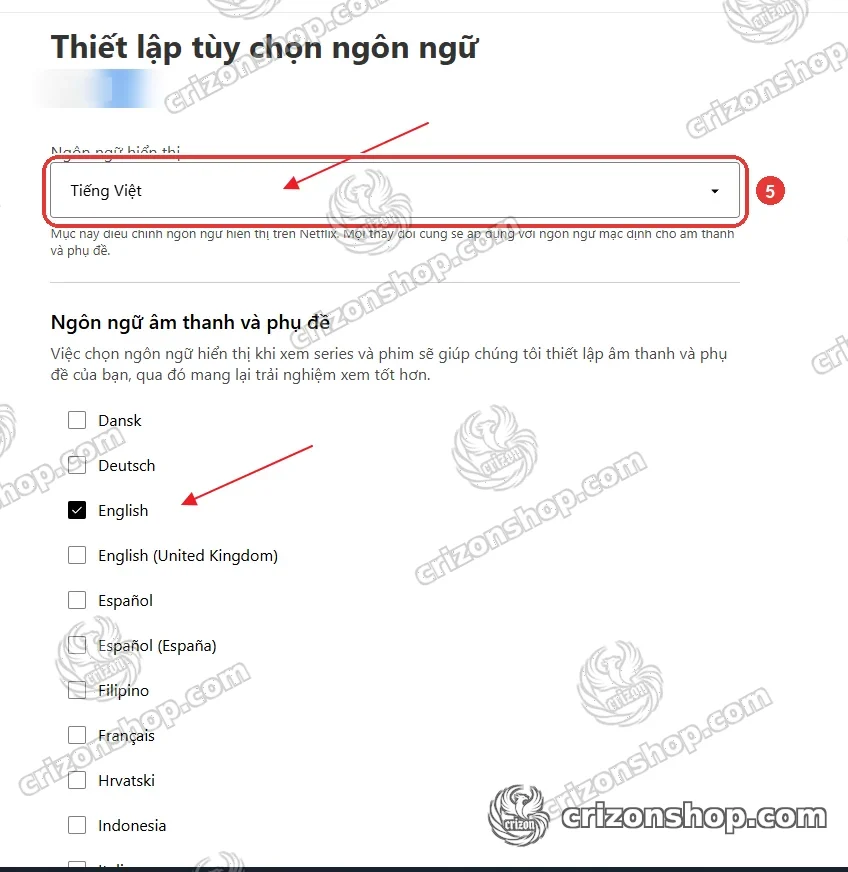
Choose Tiếng Việt (Vietnamese) under Display Language. Click Save.
Choose audio and subtitle languages
Switching the interface to Vietnamese doesn't turn on Vietnamese subtitles automatically. If you want titles to use your preferred subtitles or dubbing first, change these settings as well.
Play any movie or episode.
Pause it, then select the control bar at the bottom of the screen.
Select Other to open the audio and subtitle options.
Choose the audio and subtitle languages you want. Your choice is saved automatically.
Open the Netflix app.
Tap My Netflix in the bottom-right corner.
Tap your profile name at the top of the screen.
Tap Manage Profiles, then choose your profile.
Tap Audio & Subtitles.
Choose the languages you want. The app saves them automatically.
Go to the Account page, select Profiles, then click your profile.
Select Languages.
In the audio and subtitle languages section, check the languages you want.
Click Save.
Frequently asked questions
Check that you changed the profile you're actually watching on, because each profile has its own language setting. If it's the right profile and the text still hasn't changed, sign out and sign back in on that device. Use the email and password from your order details in Account → My orders.
Not every title on Netflix has Vietnamese subtitles or dubbing. Choosing Vietnamese in your profile only works for titles that offer it. To see which languages a title supports, pause it and open the audio and subtitle options in the player.
No. The Netflix apps on TV and phone both let you change the language when you edit your profile. Your plan works on 1 device, so the simplest option is to change it right on the device you watch on.
Go to Account → My orders on crizonshop.com and use the copy buttons to get your email and password again, so you don't mistype them. If you still can't sign in, click Report a problem on the Netflix product in your order, or message us through Chat with Support in the corner of the screen so we can look into it.
Related guides
How to Sign In to Netflix with a Password on Phone, Computer and TVHow to Sign Out of Netflix on Your TV Using the RemoteHow to Set a PIN to Lock Your Netflix ProfileStill need help?
Send your order code and we can sort it out faster.
