 Netflix · Set up
How to Set a PIN to Lock Your Netflix Profile
Go to your Netflix Account page, select Profiles, choose the profile to lock, select Profile Lock, then Create a Profile Lock, enter 4 digits and save. This guide also covers how to change or remove the PIN and what to do if you forget it.

Profile Lock lets you set a 4-digit PIN for each Netflix profile. Anyone who doesn't know the PIN can't open that profile or play downloads from it. This guide shows you how to create, change, and remove the PIN in a web browser and the mobile app, and what to do if you forget it.
Before you start
- Have your Netflix account password ready. Netflix asks for it to verify your identity when you create, change, or remove a lock.
- The PIN must be exactly 4 digits. Avoid easy-to-guess sequences like 1234 or 0000.
- Each profile has its own lock. Set the lock on the exact profile you want to protect.
- Netflix's official instructions for creating a lock currently cover web browsers and the Netflix app for phones and tablets, so this guide follows those two methods.
Create a profile lock
Open a browser, go to your Netflix Account page, and sign in if prompted.
Select Profiles.
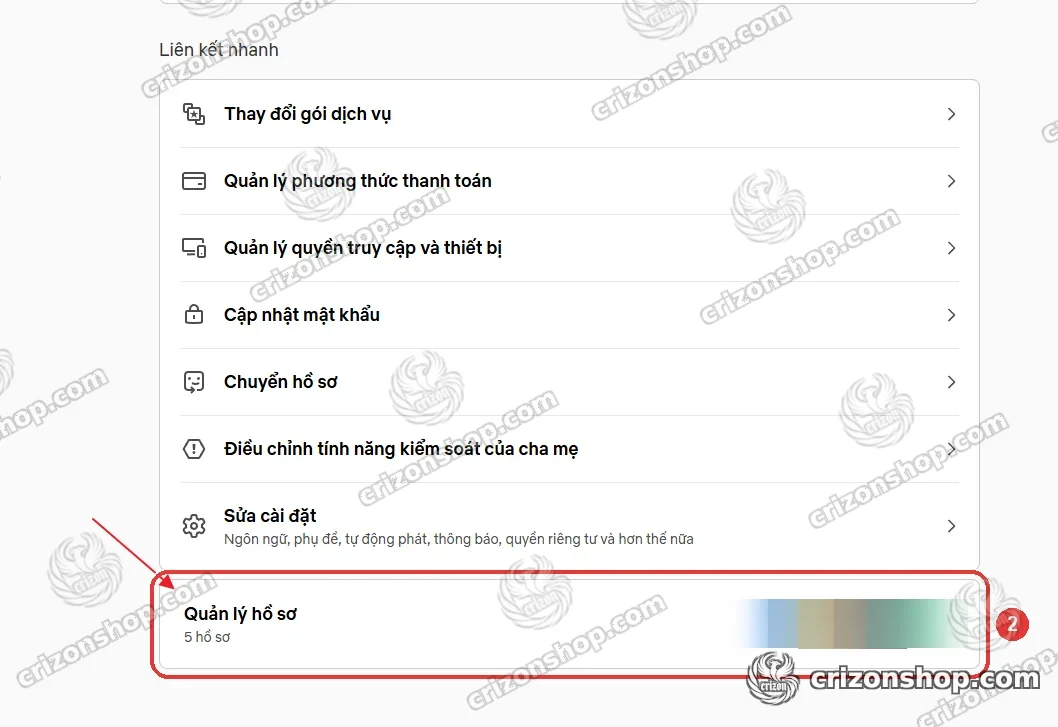
Select “Manage profiles”. Select the profile you want to lock.
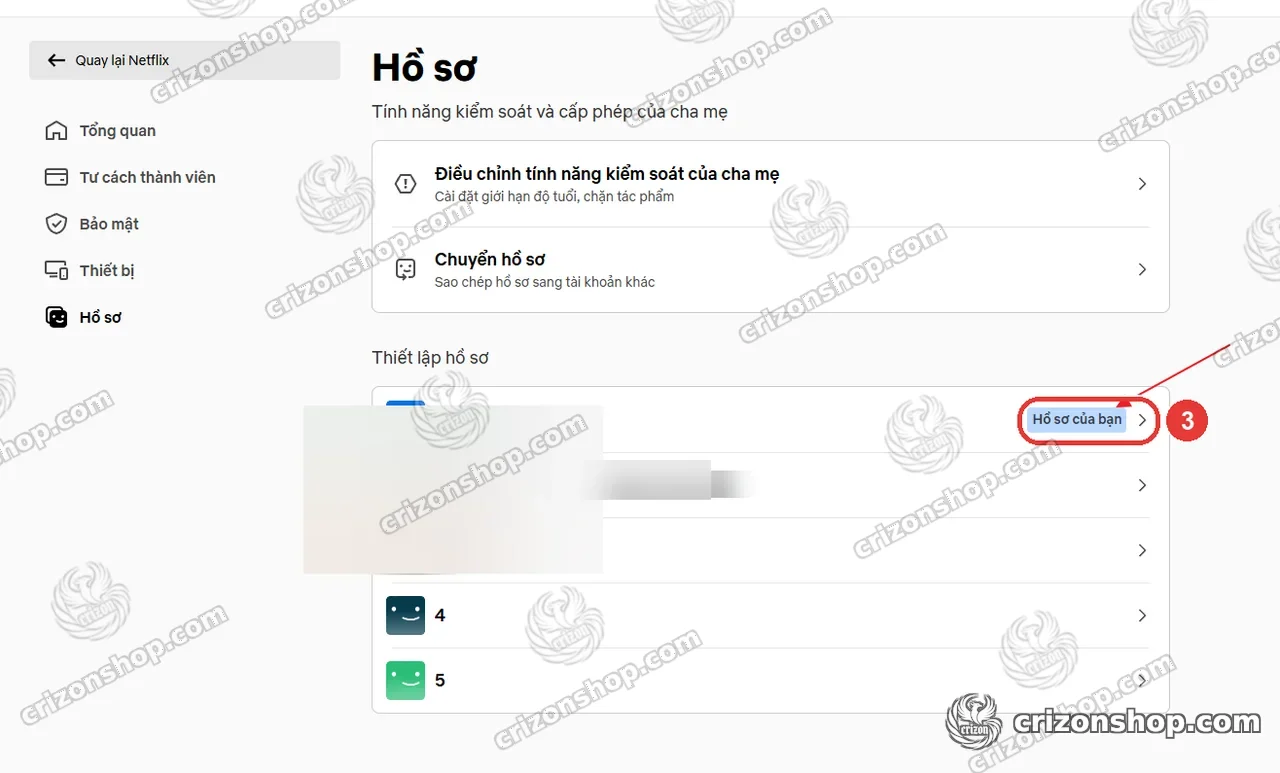
Select “Your profile” to open the profile you want to lock. Select Profile Lock.
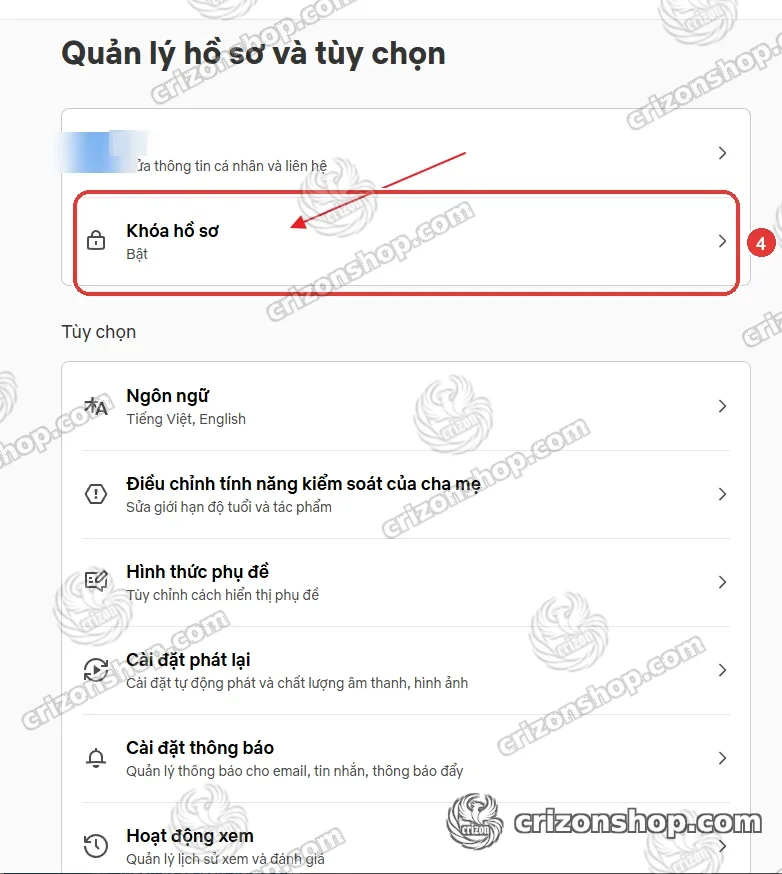
Select “Profile Lock”. Select Create a Profile Lock.
If Netflix asks you to verify, enter your Netflix account password.
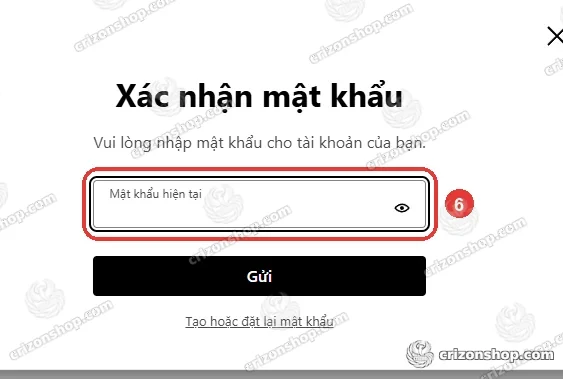
Enter your password in the “Current password” field. Type the 4 digits you've chosen as your PIN.
Select Save PIN.
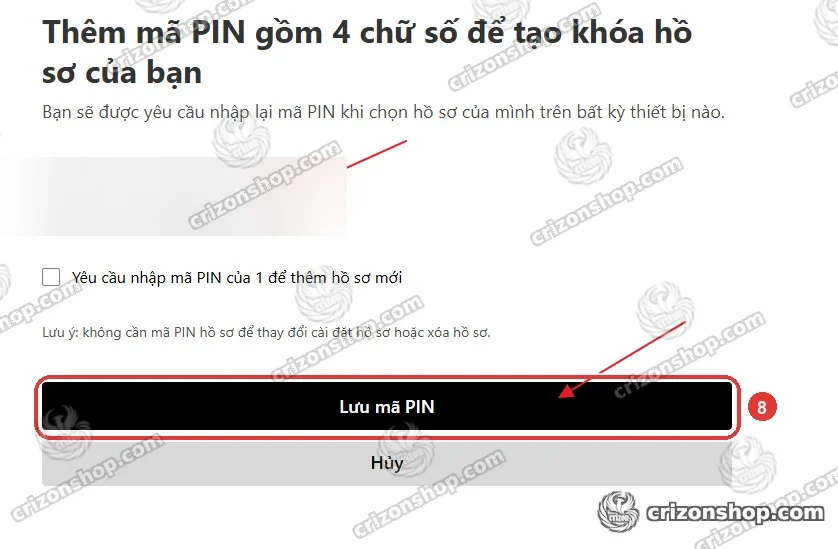
Select “Save PIN” to save your PIN.
Open the Netflix app and tap My Netflix in the bottom-right corner.
Tap the profile name at the top of the screen.
Select Manage Profiles.
Tap the profile you want to lock.
Tap Profile Lock.
Tap Create a Profile Lock.
Enter your Netflix account password to verify.
Enter 4 digits to create your PIN.
Change or remove your PIN
Open the Profile Lock screen for the profile again using the steps above, then follow the table below.
| Task | In a web browser | In the mobile app |
|---|---|---|
| Change the PIN | Select Edit PIN, verify with a code sent by email or text message or with your password, enter the new PIN, then select Save PIN | Tap Edit PIN, enter your current PIN, then enter a new one |
| Remove the lock | Select Delete Profile Lock, then verify your identity the same way as when changing the PIN | Tap Delete Profile Lock, then enter your current PIN to confirm |
If you forget your PIN
On the PIN entry screen, select Forgot PIN? and follow the on-screen instructions. Or go to netflix.com/account, open Profiles, choose the locked profile, go to Profile Lock, then select Edit PIN or Delete Profile Lock and verify with your account password.
If you're using an account provided by CrizonShop and still can't open the profile after these steps, select Report a problem on the product in your order, or message Chat with Support in the corner of the screen for help.
For more details, see Netflix's official guide: How to add, edit, or remove a profile PIN.
Frequently asked questions
No. The PIN only applies to the profile you lock. Other profiles on the account still open normally unless they have their own lock.
No. Netflix asks for the PIN both when you open a locked profile and when you play downloads from that profile.
On the TV, switch to another profile and then back to the profile you just locked. If it still doesn't ask for the PIN, sign out of Netflix on the TV and sign back in.
The Require PIN to add new profiles checkbox only appears when you lock the main profile, which is the first profile on the account. Open that profile in a web browser to see the checkbox.
Related guides
How to Sign In to Netflix with a Password on Phone, Computer and TVHow to Sign Out of Netflix on Your TV Using the RemoteHow to Change Netflix's Language to Vietnamese and Choose SubtitlesStill need help?
Send your order code and we can sort it out faster.
