 ExitLag · Activate
How to Redeem an ExitLag Code to Activate Your Plan
Log in at exitlag.com, go to My Account › Prepaid Codes, paste your code and click Activate Code. The days are added right away to the ExitLag account you're logged in to.
ExitLag activates prepaid plans with a prepaid code. You enter it on the official ExitLag website, not in the app. This guide shows you how to add the code to your ExitLag account and check that your days have been added.
Before you enter the code
How to enter the code on exitlag.com
Go to exitlag.com and log in to your ExitLag account.
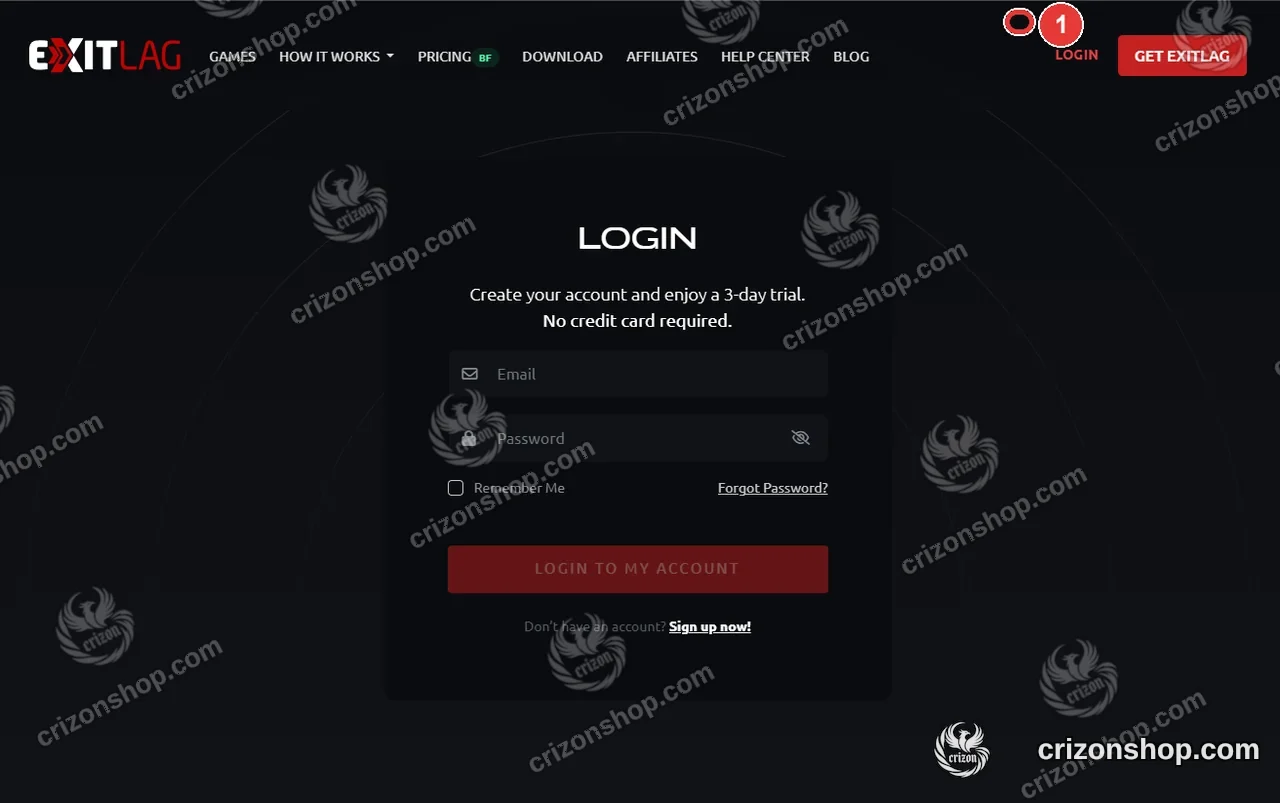
Click LOGIN to sign in to your ExitLag account. Click My Account in the top-right corner of the page.
In the left-hand menu, select Prepaid Codes.
Paste your code into the code field.
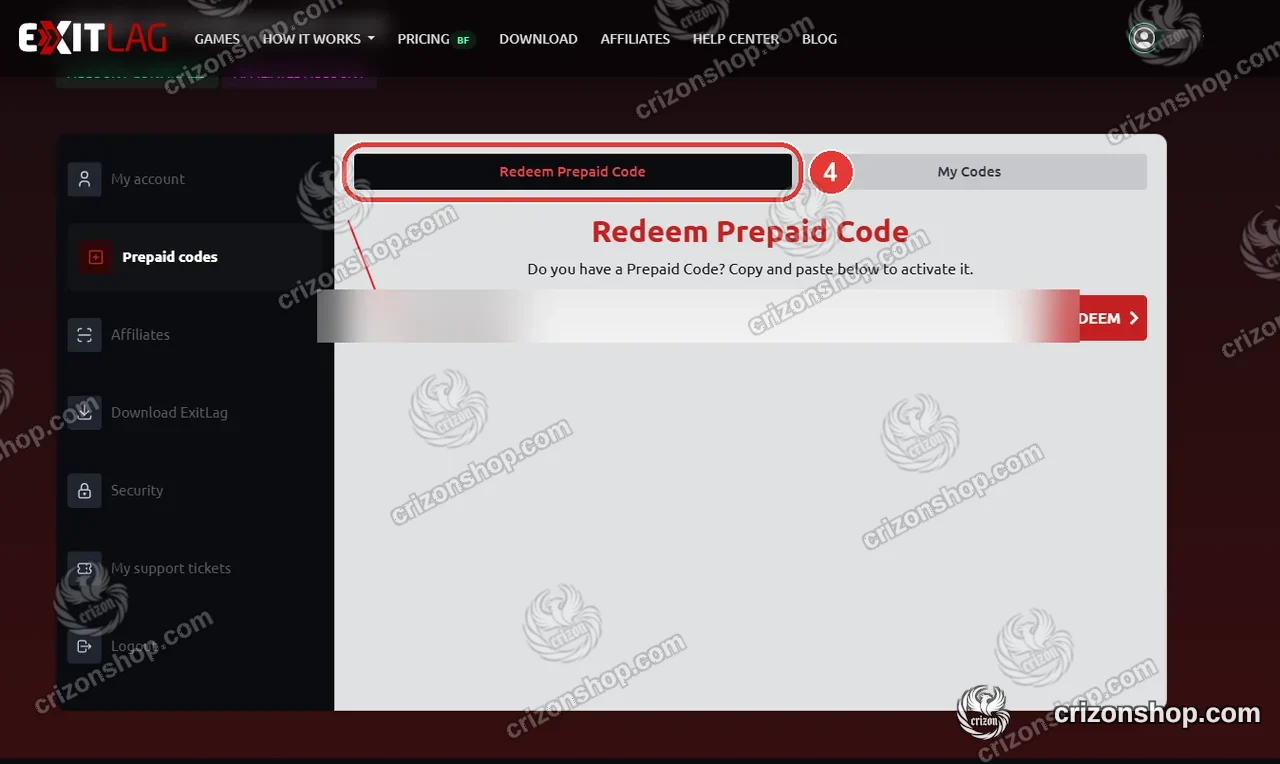
Paste your code into the field on the Redeem Prepaid Code screen. Click Activate Code.
Wait for the page to confirm that the code was activated.
Check that your plan is active
According to the ExitLag Help Center, a plan activated with a prepaid code takes effect as soon as the code is redeemed. Go back to My Account to check that your remaining days have gone up.
Next, open the ExitLag app on your computer and log in with the same account you used to redeem the code. If the website shows the new days but the app still says your plan has expired, log out of the app and log back in so it reloads your plan details.
FAQ
The code isn't added to your account automatically when you buy it. You need to log in at exitlag.com and enter the code under Prepaid Codes as shown above. If you've already entered it and still don't see the days, check whether you were logged in to a different ExitLag account at the time.
Check for extra spaces at the start or end of the code, and make sure you haven't mixed up the letter O with the number 0, or the letter I with the number 1. If you entered it correctly and still get an error, the code may have already been used. In that case, take a screenshot of the error and contact the seller you bought the code from. Don't post the code anywhere public.
No. Your plan is tied to your account, not to the app installed on your computer. Just log in to the app with the same account you used to redeem the code. If the app doesn't pick up the new plan, log out and log back in.
Yes. Open exitlag.com in your phone's browser, log in, and follow the same steps as on a computer. The days are still added to your account and work in the ExitLag app on your computer.
Related guides
How to Activate ExitLag with a Multiplayer Plan Invite Link How to Recover Your Steam Account When You've Lost Access to Your EmailHow to Change Your EA Account (Formerly Origin) Email and Password
Still need help?
Send your order code and we can sort it out faster.
