 Adobe · Activate
How to Redeem an Adobe Partner Code on Your Adobe Account
Open the Adobe Partner Offer page, enter your partner code and click Validate. Then sign in to your Adobe account and click Redeem code so the plan goes to the right account.
If you buy a laptop, camera or drawing tablet, or join a promotion from a partner brand, you may get a code for a free Adobe plan for a limited time. This guide shows you how to redeem that code on your own Adobe account. It also covers how to check that the plan is active and what to do if the code shows an error.
Before you redeem your code
Redeem your code on the Adobe Partner Offer page
Open your browser and go to
adobepartneroffer.com/goor the page the partner listed in their email.Paste your partner code into the code field, then click Validate so the page can check it.
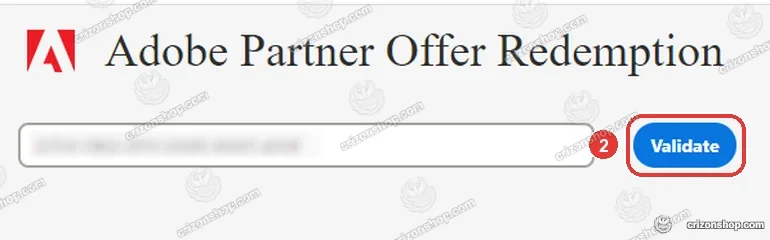
Paste your partner code, then click “Validate” to check it. Sign in to your Adobe account when prompted. If you don't have an account, click Create an account and follow the sign-up steps.
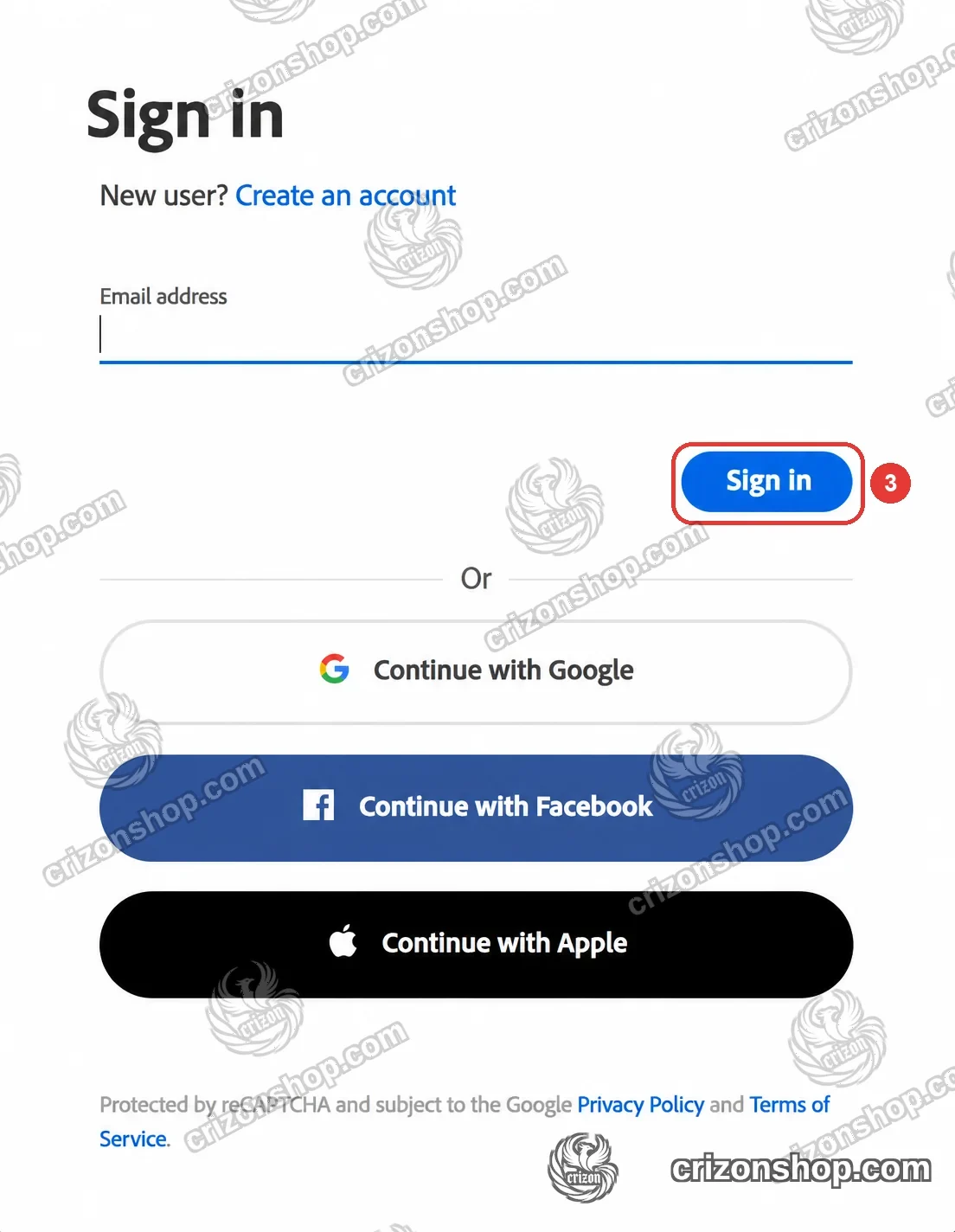
Click “Continue” to finish signing in. Review the plan you're getting. The code is already filled in, so you don't need to change anything. Just click Redeem code.
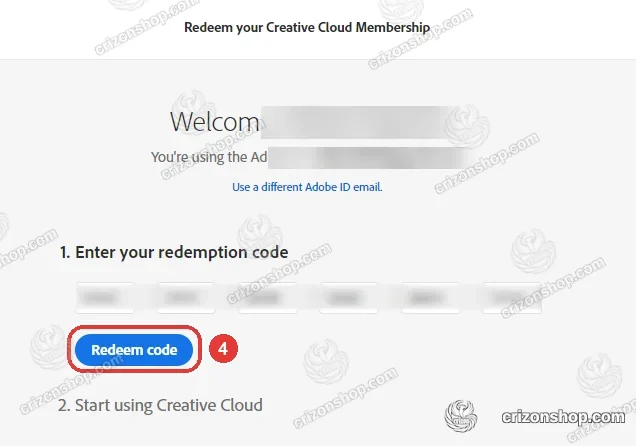
Click “Redeem code” to claim your plan. Choose Add payment method if you want the plan to renew automatically when the free period ends. Choose Remind me later if you don't want to add a card yet.
Click Get Started to finish and start using your apps.
Check that your plan is active
Sign in to your Adobe account page with the same email you used to redeem the code. Then open the plans section to see the plan name and end date. If the Creative Cloud app on your computer doesn't show the new plan yet, sign out of the app and sign back in with the same account.
If you can't redeem the code
| Problem | What to do |
|---|---|
| The redemption page won't load or shows a technical error | According to Adobe staff, this page has been down for several days at a time in the past. Try again later, switch browsers or use a private (incognito) window. If the error doesn't go away, contact the partner brand that gave you the code. |
| The code is invalid | Check every character carefully, especially 0 and O, and 1 and I. Make sure the code hasn't expired and that you're on the right page. |
| The code has already been used | The code may have been redeemed on a different Adobe account. Sign in with your other email addresses to check before you contact support. |
| The code was redeemed, but the plan doesn't show up | Make sure you're signed in to the right account on the Adobe account page and in the Creative Cloud app. |
If none of these steps help, open Adobe's contact page to chat with Adobe support. For problems with the offer's eligibility rules, also ask the partner brand that gave you the code. They have the program details.
FAQ
No. At the payment step, choose Remind me later to skip it. You can still use your free plan as normal. You only need to add a card if you want to keep using the plan after the free period ends.
It depends on the offer. Adobe notes that the code must match your plan type. For example, you can't use a Creative Cloud code to extend a Single App plan, and a student and teacher code can only extend a student and teacher plan. Read the offer terms before you redeem to see which cases the code covers.
Contact Adobe support through the contact page as soon as you can. Tell them which email you redeemed the code on by mistake and which email should get the plan, so they can look into it. Next time, check the email shown on the page before you click Redeem code.
Related guides
How to Activate Adobe Acrobat Classic with a Serial NumberHow to Redeem an Adobe Redemption Code to Activate Your PlanHow to Fully Remove Adobe Apps with the Creative Cloud Cleaner ToolStill need help?
Send your order code and we can sort it out faster.
