Rockstar Games · Activate
How to Redeem a Rockstar Game Code in Rockstar Games Launcher
Open Rockstar Games Launcher, sign in to your Rockstar account, click your profile picture in the top-right corner, choose Redeem Code, enter the code, then click Check and Redeem to add the game to your account.
This guide shows you how to redeem a Rockstar game code (Rockstar Activation Code) on your own Rockstar Games account, using the Rockstar Games Launcher app on your computer. Once you redeem it, the game is tied to that account, and you can download and play it just like a game you bought directly.
Before you start
Step 1. Install Rockstar Games Launcher and sign in
Download the installer from the official Rockstar Games Launcher page.
Run the downloaded file and follow the setup steps.
Open the launcher and sign in with your Rockstar Games account.
Step 2. Enter and redeem your code
Click your profile picture in the top-right corner of the launcher.
Select Redeem Code.
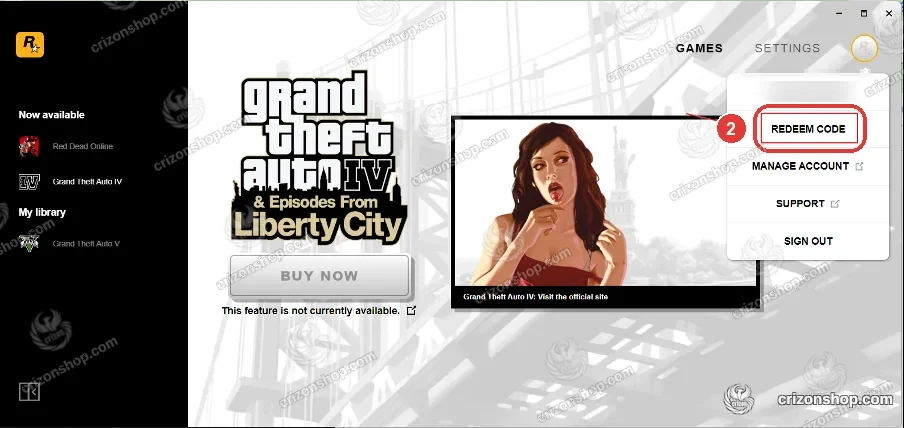
Click REDEEM CODE. Type or paste your code into the empty field.
Click Check so the launcher can verify the code.
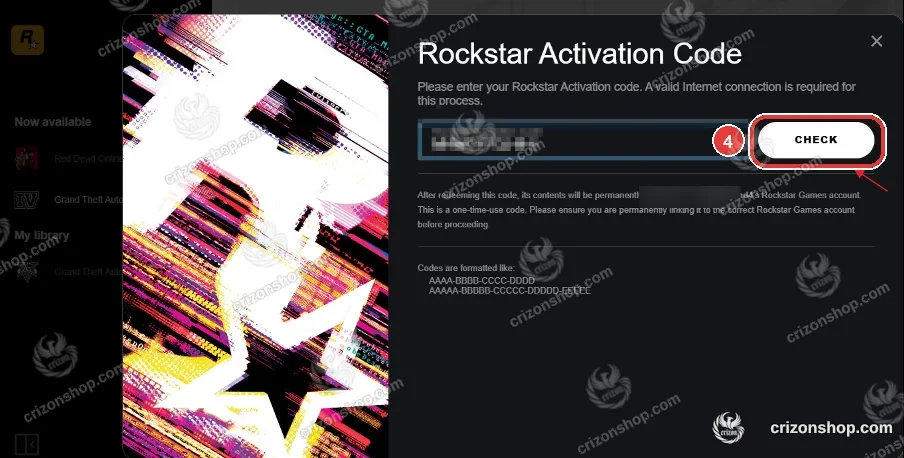
Click CHECK to see if the code is valid. Review the list of content your account will receive, then tick the confirmation box at the bottom of the list.
Read the account details at the bottom of the screen to make sure this is the account you want the game on.
Click Redeem to finish.
Step 3. Find and download the game
Once the code is redeemed, the game shows up under Games in the launcher. Select it and follow the on-screen download and install buttons to get it on your computer. If you don't see the game, fully quit the launcher, open it again, and make sure you're signed in to the account you redeemed the code on.
If the code shows an error or won't redeem
- Check for easily confused characters, like the letter O and the number 0, or the letter I and the number 1. Pasting the code is less error-prone than typing it.
- Make sure the code is actually for the Rockstar Games Launcher. Codes clearly marked for Steam or Epic Games Store must be redeemed on that platform.
- A code that's already been redeemed can't be used again, not even on the same account.
- If it still doesn't work, find more help or submit a request on the Rockstar Games Support site.
Frequently asked questions
No. According to Rockstar, the code's content is permanently tied to the account that's signed in when you click Redeem, and it can't be transferred to another account. That's why you should check the account details at the bottom of the screen carefully before you confirm.
This guide covers the Rockstar Games Launcher, which is a desktop app. Codes for PlayStation or Xbox versions of a game are usually redeemed in that console's store, not in the launcher.
No. The game is tied to your Rockstar account, so just reinstall the launcher, sign in to the right account, and download the game from Games.
Check only verifies the code. You need to tick the confirmation box at the bottom of the list and click Redeem for the game to be added to your account.
Related guides
How to Install FiveM to Play GTA V Roleplay on PC How to Recover Your Steam Account When You've Lost Access to Your EmailHow to Change Your EA Account (Formerly Origin) Email and Password
Still need help?
Send your order code and we can sort it out faster.
