 TIDAL · Sign in
How to Log In to Tidal on Desktop, Web Browser, and Phone
Download the Tidal app from tidal.com/download or open listen.tidal.com in your browser. Click Log in, enter your Tidal account email, then sign in with your password or a code sent to your email.
This guide shows you how to install the Tidal desktop app and log in with your own Tidal account in the app, in a web browser, or on your phone. At the end, you'll find how to reset your password and some fixes if you can't log in.
Before you log in
- Your Tidal account email and password. If you created the account with Apple or Facebook, remember which one you used.
- A computer running Windows 10 or later, or a Mac that meets Tidal's system requirements.
- The Tidal desktop app doesn't support Ubuntu Linux. If you use Linux, listen in your browser by following the steps below.
Install the Tidal desktop app
Go to tidal.com/download on your computer.
Pick the download for your operating system (Windows or macOS).
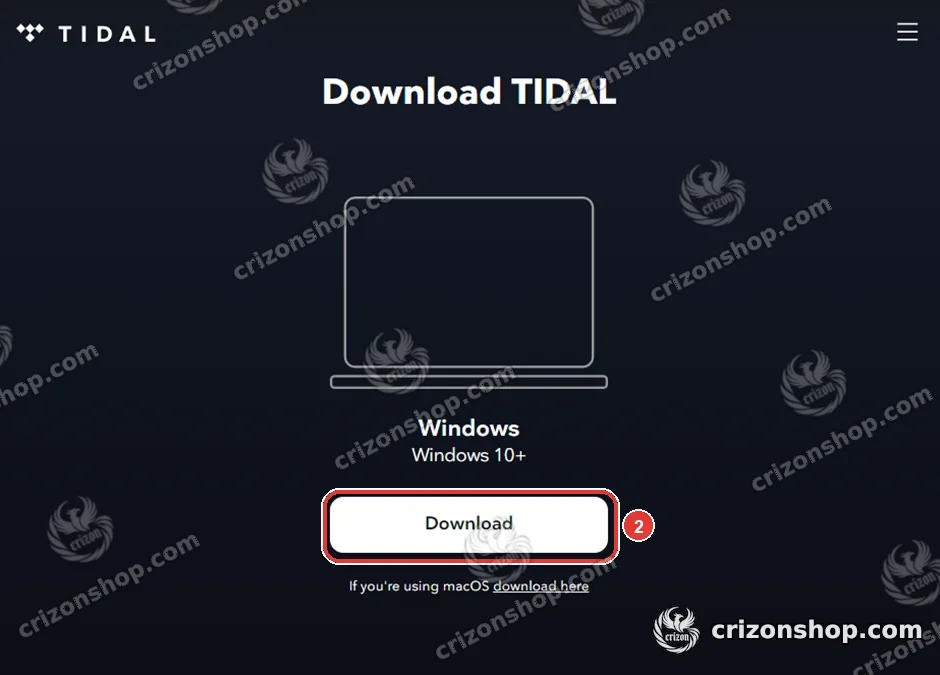
Choose your operating system, then click Download. Open the file you downloaded and follow the installer's steps.
When it's done, open Tidal from the Start menu on Windows or the Applications folder on Mac.
Log in to Tidal
Open the Tidal app and click Log in.
The app opens Tidal's login page, usually in your computer's default browser.
Enter your Tidal account email and click Continue.
Enter your password and click Log in. If the screen offers to send you a code by email, you can use that code instead of your password.
When the browser asks whether to open the Tidal app, allow it. You'll go back to the app, already logged in.
Open listen.tidal.com in an up-to-date browser.
Click Log in.
Enter your Tidal account email and click Continue.
Enter your password or the login code Tidal sends to your email.
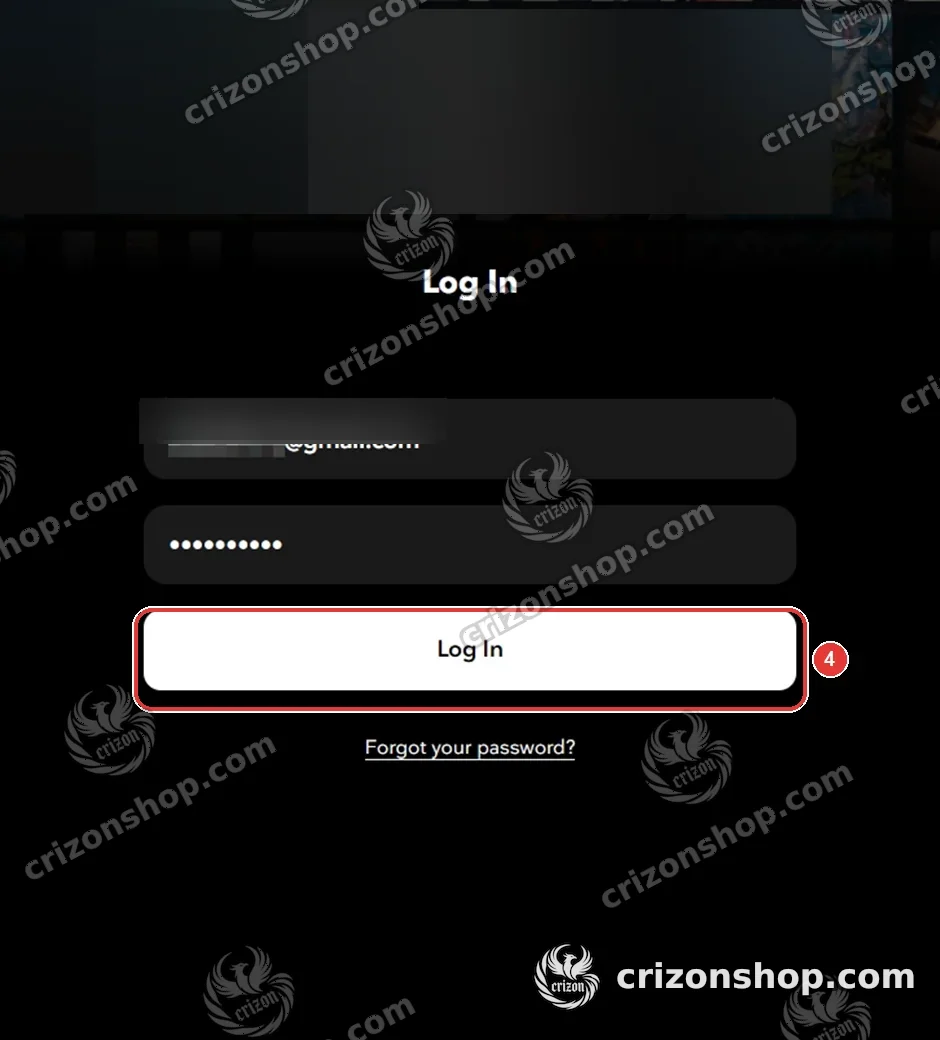
Click Log In to sign in. Once you're logged in, the page takes you to the Tidal player.
Download the TIDAL app from the App Store on iPhone or Google Play on Android.
Open the app and tap Log in.
Enter your Tidal account email.
Log in with your password, a code sent to your email, or a passkey if you've already set one up.
Forgot your Tidal password
Enter the email you use to log in to Tidal and submit the request.
Open the email from Tidal and follow the instructions to create a new password.
If you don't see the email in your inbox, check your Spam and Trash folders.
If you can't log in to Tidal
- Update your browser to the latest version, or reinstall it if needed.
- Turn off your VPN, browser extensions, and ad blockers, then reload the page.
- Try opening Tidal in a different browser.
- Log out and log back in to refresh your session. This often fixes minor glitches in both the desktop app and the web player.
- For more steps, see Tidal's Basic Troubleshooting Steps page.
FAQ
The Tidal desktop app doesn't support Ubuntu Linux. You can still listen by opening listen.tidal.com in your browser and logging in as usual.
If the login screen offers a Sign in with Apple option, use it. If you have to log in with email, use the exact email address Apple assigned to Tidal, which may be a private address. If you reset your password using this private address, the email will be forwarded to the real email linked to your Apple ID.
Check your Spam and Trash folders, and make sure the email you entered is the one you signed up for Tidal with. If you don't remember which email you used, see Tidal's Forgot Email Address page.
Related guides
 How to Set a Spotify Password When You Log In with Google, Facebook, or Phone
 How to Sign In to Your Private YouTube Premium Account
 How to Sign In to Netflix with a Password on Phone, Computer and TV
Still need help?
Send your order code and we can sort it out faster.
