 iQIYI · Sign in
How to Log In to iQIYI Premium VIP with an Account from CrizonShop
Copy your iQIYI login and password from My orders on CrizonShop. Open iQIYI, choose Log in with Password and paste your details. Then use your own profile on one device only.
This guide shows you how to log in to the iQIYI Premium VIP plan you bought from CrizonShop with the account we provide, then open your own profile. Use it on one device only: a phone, a computer or a TV.
Step 1. Get your login details from your order
Sign in to your account at crizonshop.com.
Go to Account → My orders and open the details of your iQIYI Premium VIP order.
Read the Guide section right below the product to see which profile is yours.
Click the copy button in the account field, then do the same in the password field.
To see the password and check it, click the show/hide icon in the password field.
Step 2. Choose the device you'll watch on
This plan works on 1 device only. It doesn't support watching on 4 devices at the same time. Pick the device you watch on most, and log in to the account on that device only.
Step 3. Log in to iQIYI
According to iQIYI's help page, iQIYI lets you log in with Google, Facebook, Apple ID, an SMS code, or an email and password. With the account from CrizonShop, always choose Log in with Password and paste the details from your order.
Install or update the iQIYI app from the App Store or Google Play.
Open the app and tap Me.
Tap the login button at the top of the Me page.
Choose Log in with Password.
Paste the account into the email or phone number field, then paste the password into the field below it.
If you see a checkbox to accept the terms, tick it first.
Tap Log in to sign in to the account.
Open your browser and go to iq.com.
Click the login button or the account icon in the top-right corner.
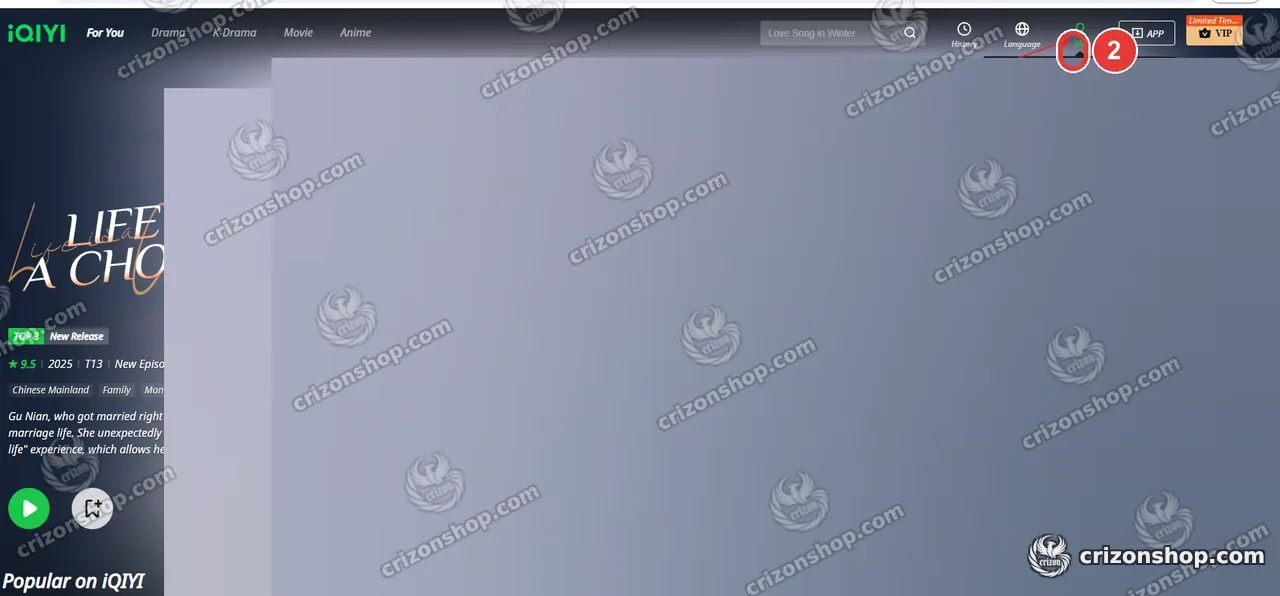
Click “Me” to open the account menu. Choose Log in with Password.
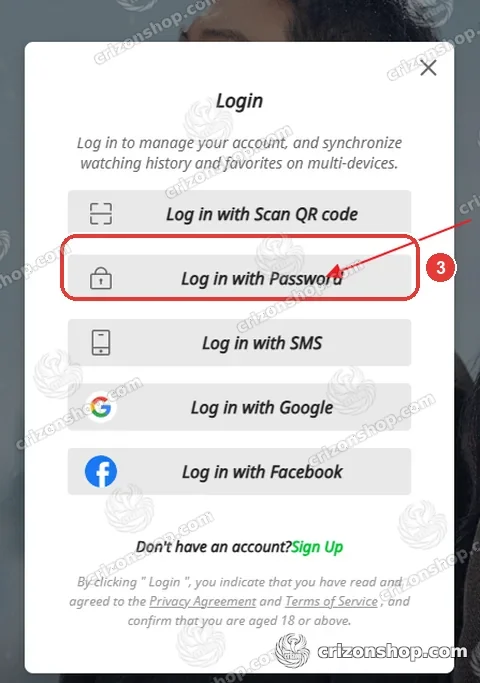
Click “Log in with Password”. Paste the account and password you copied from your order.
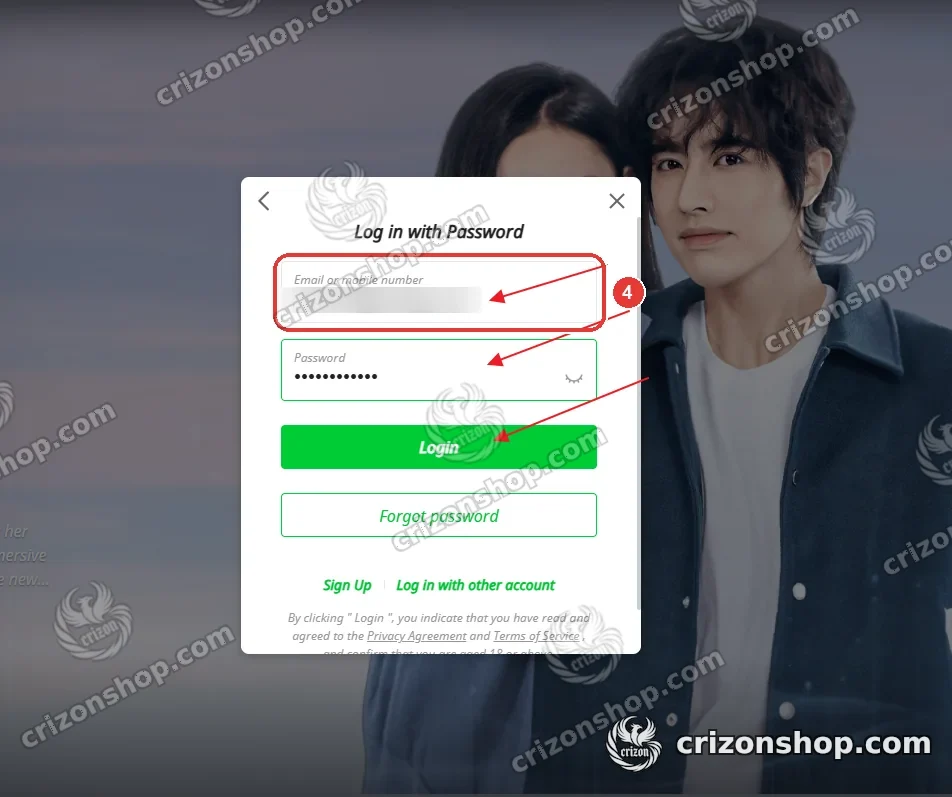
Paste the account into the “Email or mobile number” field. Click Log in to sign in to the account.
Open the iQIYI app on your TV and select the login option.
If your TV offers password login, choose it. Then use the remote to enter the account and password from your order.
If your TV only shows a QR code, don't scan it yet. Scanning it requires a phone that's logged in to the same account, which means using a second device. Contact us via Chat with Support to get steps that work with a 1-device plan.
Step 4. Open your own profile
Once you're logged in, choose the profile listed in the Guide section of your order, and only watch on that profile. Don't rename, delete or edit other users' profiles.
Can't log in? Check these
If you've checked everything and still get an error, go to Account → My orders, open the order and click Report a problem on the iQIYI product. Tell us which device you're using and the exact error message on your screen so we can check faster. You can also use Chat with Support in the corner of the screen.
Frequently asked questions
No. The account from CrizonShop uses an email or phone number with a password. If you log in with Google or Facebook, iQIYI will open or create a different account linked to your Google or Facebook account. That account doesn't have Premium VIP.
Check that you're logged in to the account from your order. The app is often still signed in to an old account. Log out, then log in again with Log in with Password. If videos are still locked, click Report a problem in your order.
The plan works on 1 device only, so log out on your current device first, then log in on the new one. If you're not sure, message us via Chat with Support before switching so the account isn't affected.
Premium VIP lets you skip some ads before a video starts, but ads in the middle of a video may still appear. 4K is only available when both your device and the title's license allow it, so not every title has this option.
Related guides
 How to Set a Spotify Password When You Log In with Google, Facebook, or Phone
 How to Sign In to Your Private YouTube Premium Account
 How to Sign In to Netflix with a Password on Phone, Computer and TV
Still need help?
Send your order code and we can sort it out faster.
