 Surfshark · Sign in
How to Log In to Surfshark VPN and Download the App
Log in to Surfshark at my.surfshark.com with your email and password, then open the app download section to get the desktop app. On your phone, install Surfshark from Google Play or the App Store.
This guide shows you how to log in to your Surfshark account on Surfshark's website, download the right app for your device, and log in to the app to turn on the VPN. These steps apply to Surfshark accounts you signed up for yourself.
Before you start
Log in to your account dashboard on the web
Open your browser and go to my.surfshark.com.
Enter the email you signed up with in the email field.
Enter your password and click Log in.
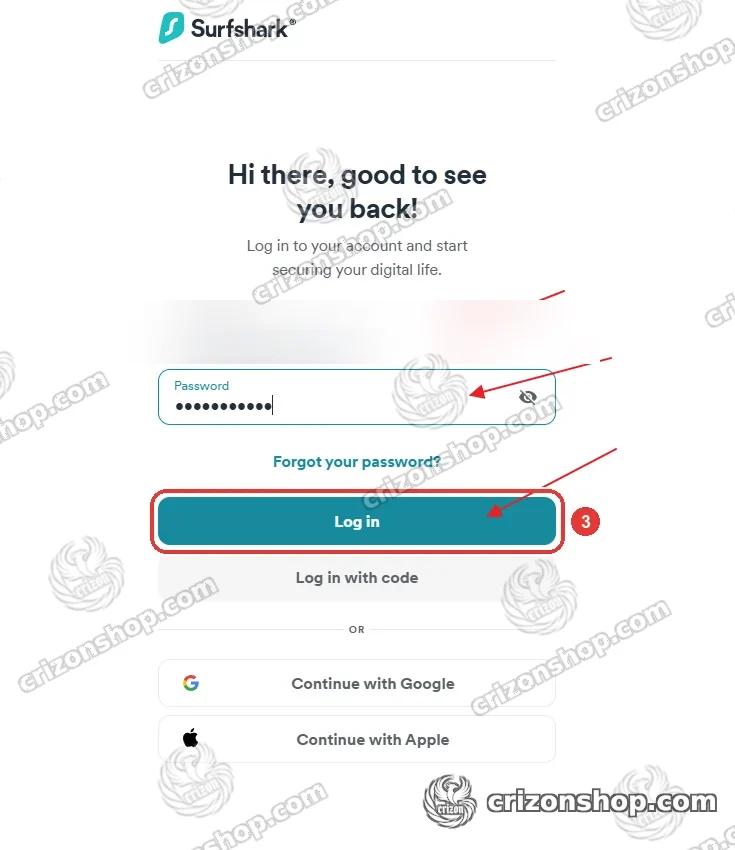
Enter your password and click “Log in”. If 2FA is on for your account, enter the verification code to finish logging in.
Download the Surfshark app
Once you're logged in, the dashboard has download links for each device. You can also download straight from Surfshark's download page without logging in on the web first.
In the left menu of the dashboard, select the app download section (usually called Download apps or Apps).
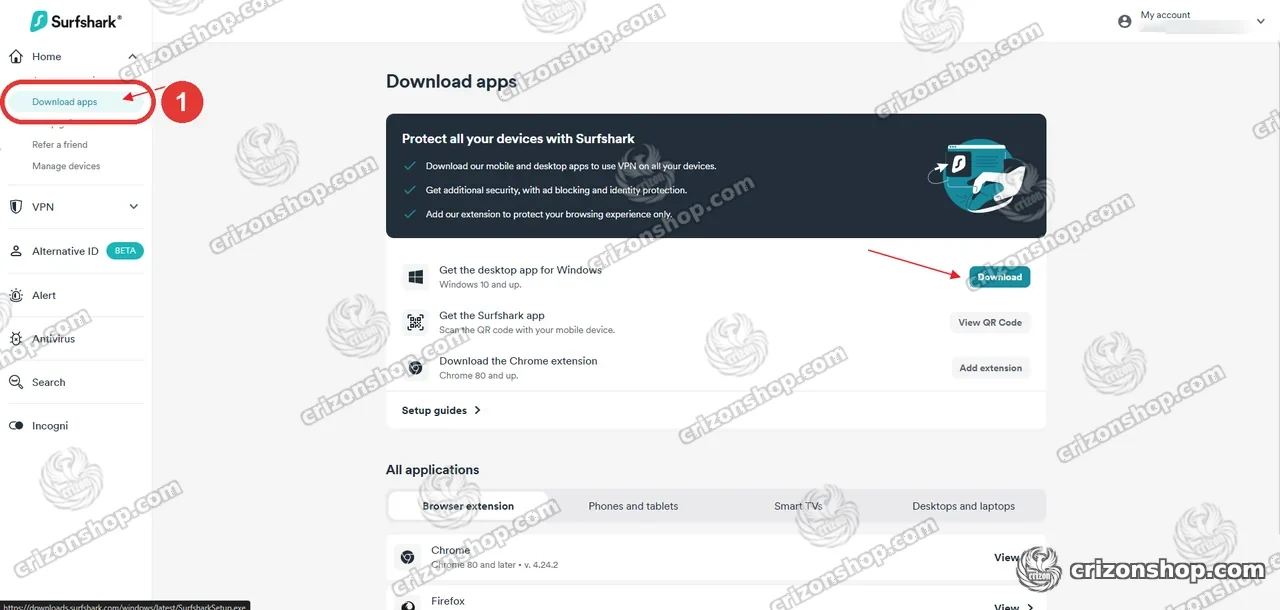
Select “Download apps”. If you don't see this section, open my.surfshark.com/home/apps directly.
Choose the operating system or device you're using.
Click the matching download button.
Install on your device
Open your Downloads folder and double-click the
Surfshark.Setupfile.When Windows asks for permission, click Yes.
Wait for the installation to finish. The app opens automatically.
If your PC runs Windows 7 or Windows 8, download the Legacy version instead of the standard one.
Open the App Store on your Mac.
Search for "Surfshark" and select the app from the developer Surfshark.
Click Get and wait for it to install.
Open Surfshark from your Applications folder.
On Android, open Google Play. On iPhone or iPad, open the App Store.
Search for "Surfshark" and make sure you pick the app from the developer Surfshark.
Tap Install (Google Play) or Get (App Store) and wait for the download to finish.
Open the Surfshark app you just installed.
Log in to the app and turn on the VPN
Open the Surfshark app and select Log in.
Enter your email and password, then select Log in.
If 2FA is on for your account, enter the verification code and select Verify.
On the home screen, select Quick-connect to connect to the fastest server.
Besides email and password, the app also lets you log in with Google, Apple ID, or a login code. Only choose Google or Apple if your Surfshark account was created that way.
Log in with a code on devices that are hard to type on
This is handy when you're installing Surfshark on a TV or a new device and you're already logged in on another device.
On the device you want to log in on, select Log in with code to show a code.
On the device that's already logged in, open Settings and go to My account.
Select Enter login code and type in the code.
Go back to the new device. The app logs in automatically.
If you forgot your password
Enter the email you signed up with and click Get the reset link.
Open the email from Surfshark titled Reset password instructions. If it's not in your inbox, check your Spam folder.
Click Reset your password in the email.
Set a new password that meets the requirements shown and click Confirm new password.
FAQ
According to Surfshark's official website, one account can connect an unlimited number of devices at the same time. Just install the app and log in with the same email and password on each device.
Close any other VPN apps that are running. Log in on the web at my.surfshark.com to make sure your password is correct, then switch from Wi-Fi to mobile data or the other way around. If it still doesn't work, uninstall the app, reinstall it, and restart your device.
This usually happens when you chose to hide your email (Hide My Email) when signing up, so Surfshark can't recognize your account. On your iPhone, go to <b>Settings</b> › your Apple ID name › <b>Password & Security</b> › <b>Apps using Apple ID</b> › <b>Surfshark</b> and select <b>Stop using Apple ID</b>. Then log in with Apple again and choose <b>Share My Email</b> so your real email is shown.
Contact the support team through Surfshark's Help Center and provide the payment details for your plan so Surfshark can verify that you own the account.
Related guides
How to Enter a Surfshark VPN Activation Code at Checkout How to Activate Avast BreachGuard with a Sign-in Key
 How to Activate AVG AntiTrack Premium with an Activation Code
Still need help?
Send your order code and we can sort it out faster.
