Microsoft Store · Set up
How to Download Games from Microsoft Store on a Windows PC
Open Microsoft Store and sign in with your Microsoft account. Find a game, then click Get or Install if it's free, or Buy if it's paid. When the download finishes, the button changes to Play.
This guide shows you how to find and download games from the Microsoft Store app that comes with Windows 10 and Windows 11. You'll also learn how to reinstall games already in your account and what to try when a game won't download.
Before you start
Steps to download a game
Press the Windows key on your keyboard or click Start, type
Microsoft Store, then open the app.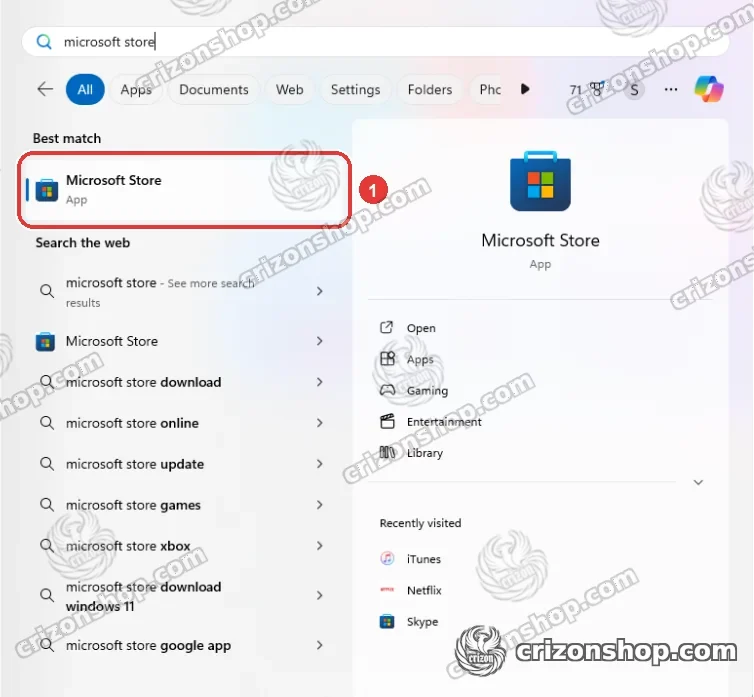
Click “Microsoft Store” (Start) to open the app. Look at the top-right corner. If you don't see your profile picture, click the user icon and choose Sign in to sign in with your Microsoft account.
Type the game's name in the search box at the top, or select Gaming in the left sidebar to browse games.
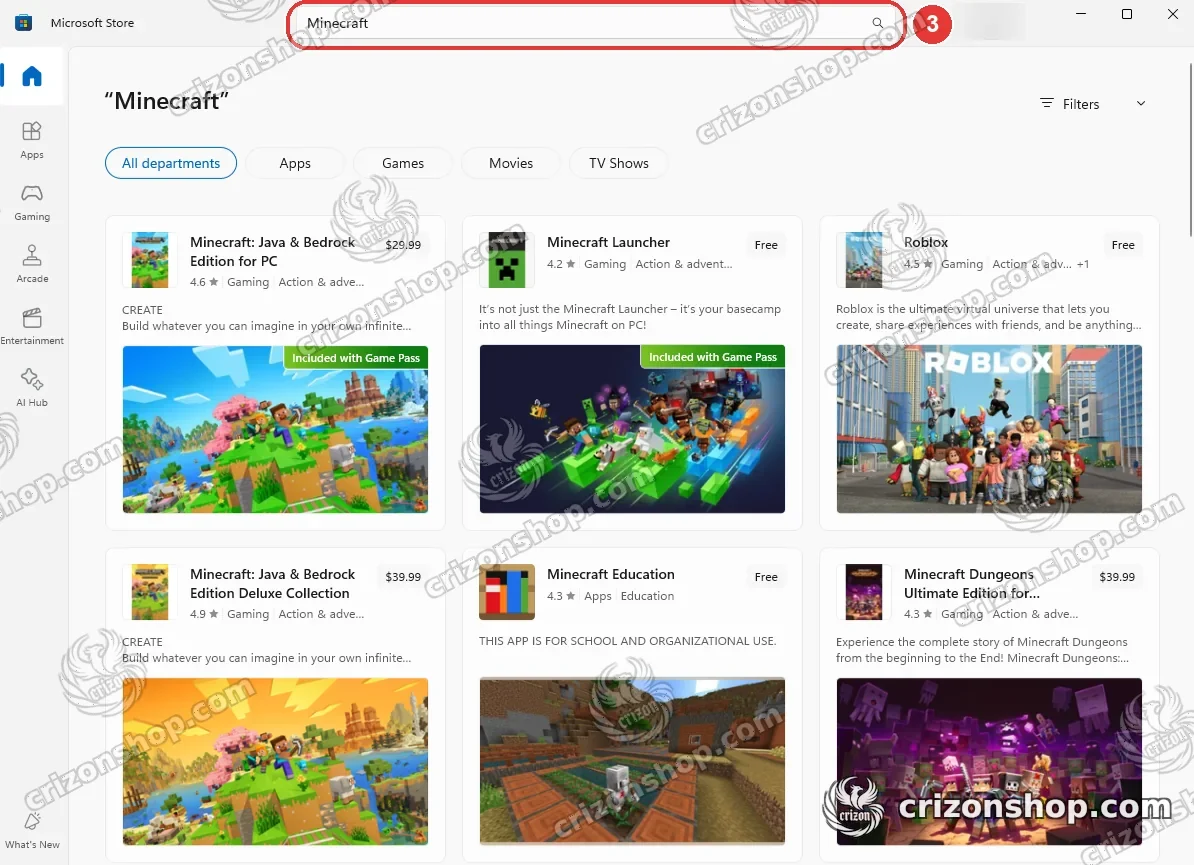
Click the search box containing “Minecraft” (Gaming). Click the game you want to open its details page.
Click Get or Install if the game is free. If it's a paid game, click Buy and follow the payment steps.
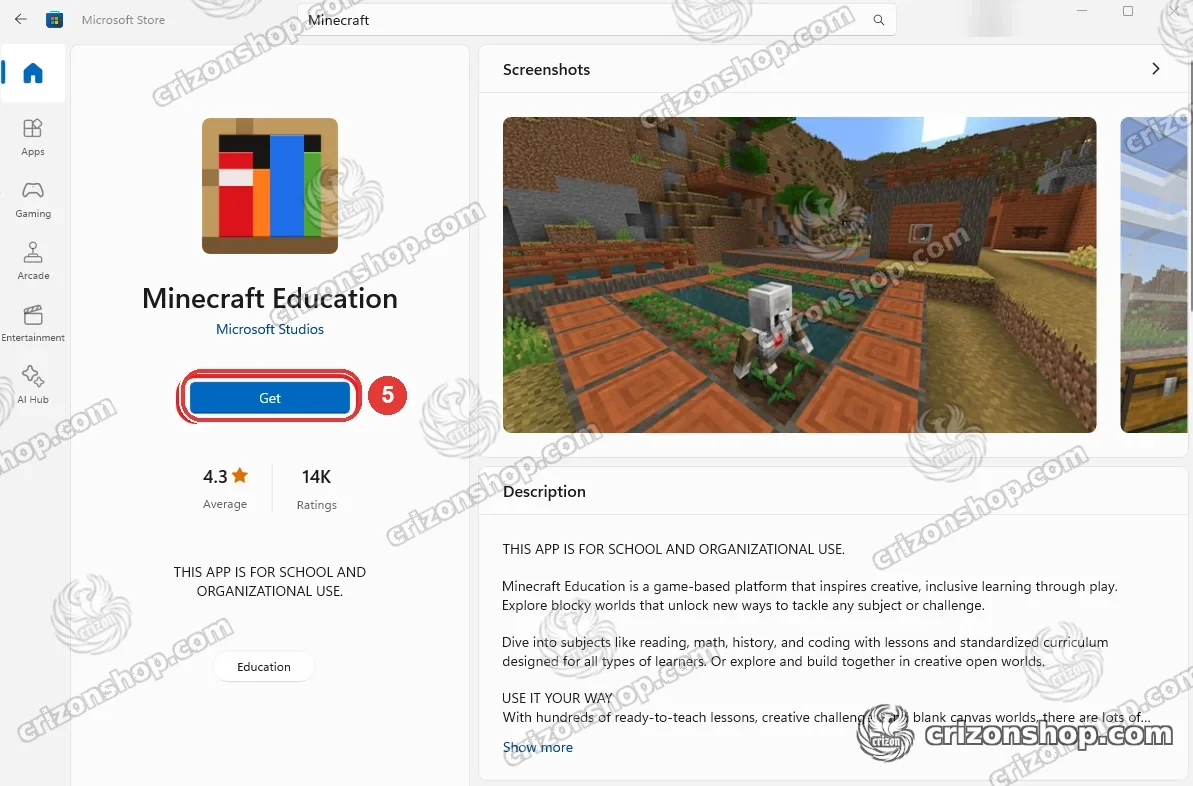
Click “Get” (Install) to download the game. Wait for the progress bar to finish. When the button changes to Play, the game is installed and ready to play.
The button on a game's page depends on the game's status in your account. Use the table below to see where you are.
| Button you see | What it means |
|---|---|
| Get or Install | The game is free or already in your account. Click to download it to your PC |
| Buy | The game is paid. You need to pay before downloading |
| Play | The game is already installed on this PC |
Microsoft's own guide on this is at Get apps and games from Microsoft Store on Windows.
Reinstall games already in your account
Games you've downloaded or bought with your Microsoft account stay in your library. If you reinstall Windows or move to a new PC, you don't need to search the store for each game again.
Open Microsoft Store and sign in with the same Microsoft account you used to download the games.
Select Library in the left sidebar.
Find the game in the list. Games with a download icon aren't installed on this PC yet.
Click the download icon (or the Install button) to download and reinstall the game.
What to do if a game won't download
Work through the steps below in order. After each step, try downloading the game again before moving on to the next one.
Basic checks
Make sure you're signed in to Microsoft Store with your Microsoft account.
Click X to fully close Microsoft Store, then open it again.
Go to Start › Settings › Windows Update, click Check for updates, and install all available updates.
If Windows asks you to restart, restart your PC before downloading the game.
Open Microsoft Store, select Library, then click Get updates to update the Store app itself and your installed games.
Check your free disk space. If the drive is almost full, delete files you don't need.
Reset Microsoft Store with wsreset
Press Windows + R to open the Run box.
Type the command below into the box.
Click OK.
wsreset.exeA black window appears for about 10 seconds and closes on its own. Then Microsoft Store opens automatically. Search for the game and try downloading it again from the start.
If you've tried every step and it still doesn't work, see Microsoft's pages Troubleshoot apps from Microsoft Store and Can't find or install an app from Microsoft Store. For products you bought from CrizonShop, go to Account › My orders on crizonshop.com, then click Report a problem on the product in your order or message us via Chat with Support in the corner of the screen.
FAQ
Not all of them. Microsoft Store has plenty of free games, and you can spot them by the Get or Install button. Paid games show a Buy button with the price. You're only charged when you click to buy and confirm the payment.
Usually the game isn't released in your region, it's hidden by family settings that limit age ratings, or it's an Xbox-only game. Games that are no longer sold may also linger in search results for a while. Try running wsreset.exe as shown above, then search again.
The games are removed from your drive, but you still own them through your Microsoft account. Just sign in to Microsoft Store with the same account, go to Library, and download the games again.
Yes. According to Microsoft, apps and games installed from Microsoft Store update automatically. To update right away, go to Library and click Get updates.
Related guides
 How to Recover Your Steam Account When You've Lost Access to Your EmailHow to Change Your EA Account (Formerly Origin) Email and Password
 How to Redeem a Battle.net Code on the Web, Desktop, and Mobile
Still need help?
Send your order code and we can sort it out faster.
