Google Play · Before you buy
How to Check Your Google Play Account Country (Region)
Open the Google Play Store and go to Settings › General › Account and device preferences › Country and profiles, or check the Country/Region line in your Google Pay settings.
Every Google account that uses Google Play is tied to a country through its payments profile. This guide shows you how to see which country your account is set to, on an Android phone or a computer. It's a good idea to check before you buy a top-up card or a region-locked plan.
Check your account's current country
You can see the country right in the Google Play Store app or on the payments settings page. Pick the method that fits the device you're using.
Open the Google Play Store app.
Tap your profile picture in the top-right corner.
Tap Settings.
Tap General.
Tap Account and device preferences.
Find Country and profiles to see the country your account is using.
Go to Google Pay and sign in with the Google account you want to check.
Click Settings at the top of the page.
Under Payments profile, find the Country/Region line.
The country shown there is your current Google Play country.
Quick check: look at the payment methods offered
You can also get a quick idea of your country by looking at which payment methods Google suggests. This list changes based on the country in your payments profile.
Sign in to Google Pay with the account you want to check.
Open Payment methods.
Click Add payment method.
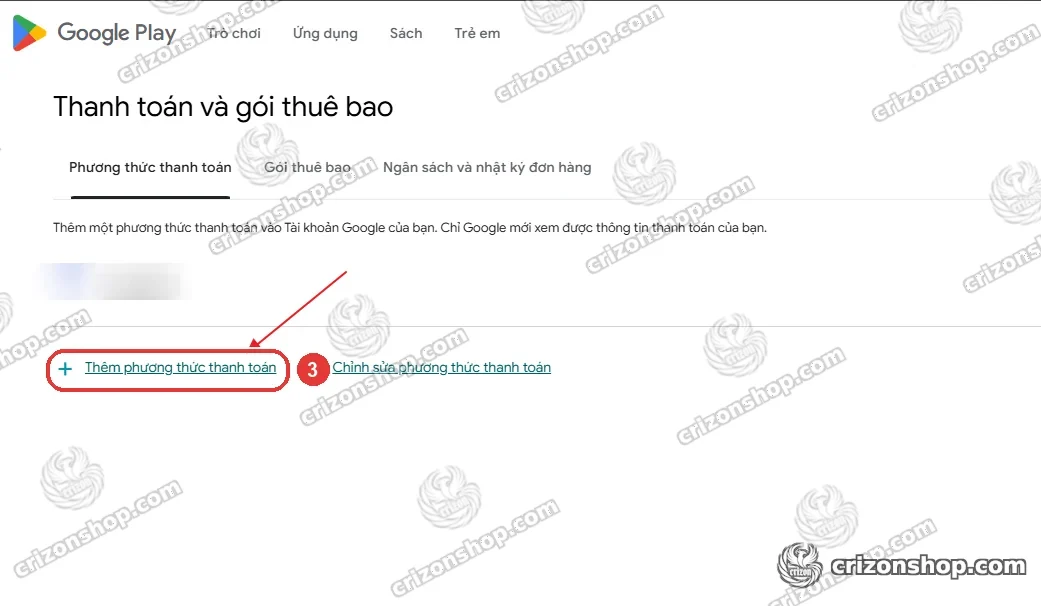
Click “Add payment method” to continue. Look at the options Google shows.
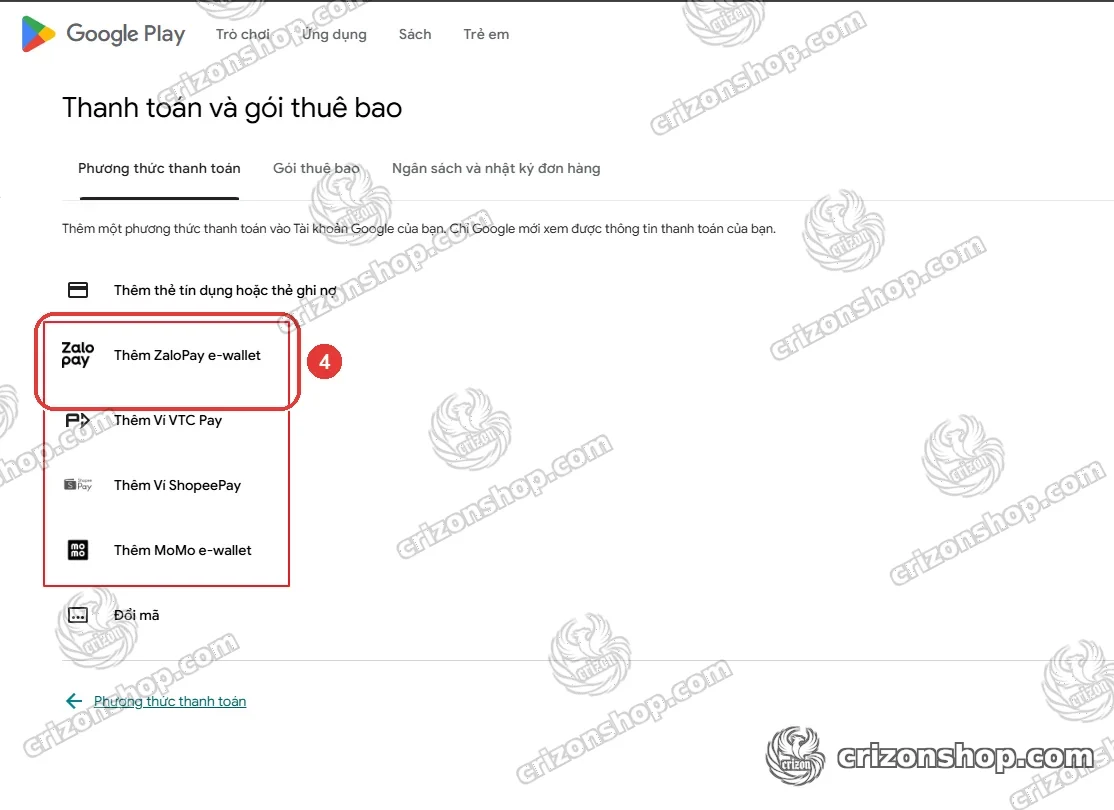
Look at the options Google shows, such as “Add ZaloPay e-wallet”. If you see Vietnamese e-wallets such as MoMo or ZaloPay, your account is most likely set to Vietnam.
If the country isn't the one you need
Google lets you change your Google Play country, but there are some conditions. Read them carefully before you switch, because you can't change it back right away.
- You must actually be in the new country and have a payment method from that country.
- After you set your country for the first time, you have to wait at least 90 days before you can change it.
- If your account is a member of a Google family group, you can't change its country.
- Your Google Play balance stays tied to the old country and can't be used after you switch to a new one.
If you meet these conditions, follow these steps on your Android phone.
Open the Google Play Store and tap your profile picture.
Go to Settings, then tap General.
Tap Account and device preferences.
Under Country and profiles, choose the country you want to switch to.
Follow the on-screen instructions to add a payment method from that country.
You can see the full list of conditions on Google's How to change your Google Play country page.
Frequently asked questions
According to Google, this option doesn't appear if you're a member of a Google family group, if it's been less than 90 days since your last change, or if you're not actually in the country you want to switch to.
Google says changes can take up to 48 hours to apply. Wait until that time has passed, then open Country and profiles again to check.
No. Your balance stays tied to the old country, and you can't use it once your account has switched to the new one. If you still have a balance, use it up before you switch.
Yes, especially if the product you plan to buy lists a region requirement. If you're not sure your account will work, use Chat with Support in the corner of the screen on crizonshop.com to get advice before you order.
Related guides
How to Redeem a Google Play Code on Your Google Account How to Join a Google Family Group by InvitationHow to Install and Activate an eSIM on iPhone and Android
Still need help?
Send your order code and we can sort it out faster.
