 Battle.net · Set up
How to Change Your Battle.net Email and Password
Sign in at account.battle.net, go to Account Details, and click Update under Email or Password. Verify with an Authenticator code, SMS, or your current email to make the change.
This guide shows you how to change the login email and password for your Battle.net account on Blizzard's account management page. You do both in a browser. Each takes just a few minutes, as long as you can get a verification code.
Before you start
- Your current email and password, so you can sign in to the account management page.
- A way to get a verification code that's already set up on your account, such as the Battle.net Authenticator app, a phone number with SMS turned on, or the email inbox linked to your account.
- If you're changing your email, have your new email address ready and make sure you can open that inbox right away.
Where to get the verification code
| Verification method | Where the code is sent |
|---|---|
| Authenticator | The Battle.net Authenticator app on your phone |
| SMS | A text message to the phone number linked to your account (only if you've turned on SMS) |
| An email to your registered address, which is your old email |
Change your Battle.net login email
Open the Battle.net account management page and sign in with your current email and password.
Go to the Account Details page.
In the Email section, click Update.
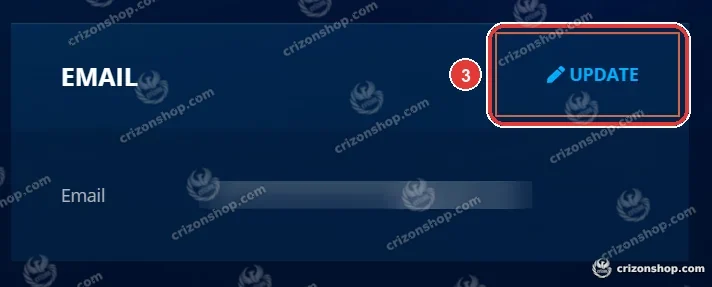
Click UPDATE in the Email section. Choose a verification method your account has, then enter the code you get.
Enter your new email address and confirm the change.
Open the inbox for your new email. If Blizzard sends a verification email, click the verification button in it to finish.
For more details, see Blizzard's official guide: Updating Your Battle.net Email Address.
Change your Battle.net password
Sign in at account.battle.net.
Find the Password section in your account information and click Update.
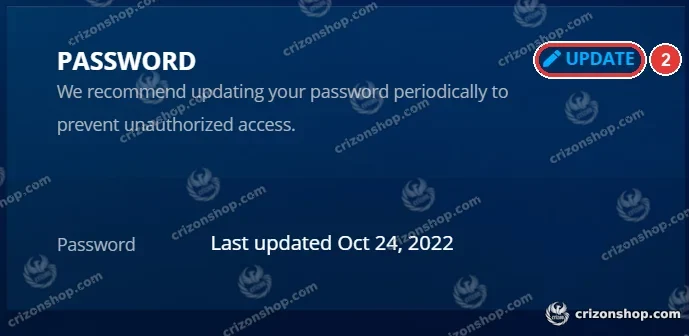
Click UPDATE under Password to change your password. If the page asks for a verification code, enter the code from Authenticator, SMS, or email.
Enter your current password in the first field.
Enter your new password, then type the same password again in the confirmation field.
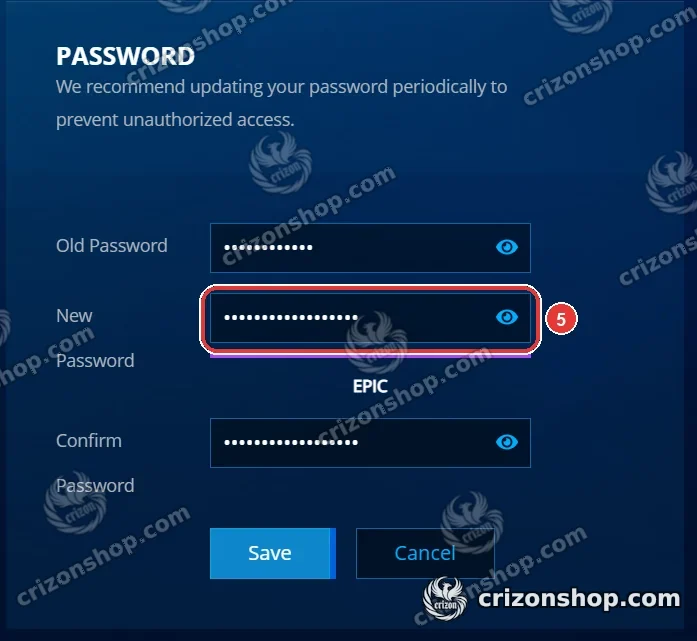
Enter your new password in the New Password field. Click Save to update your password.
Add an extra layer of protection
If your account doesn't have Battle.net Authenticator or SMS set up yet, add at least one. The next time you change your email or password, you'll have another way to get a verification code, so you won't have to rely only on your email inbox. Setup steps are on Blizzard's Battle.net Authenticator page.
Frequently asked questions
The code goes to your registered email, which is your old email. Check your Spam or Promotions folder and wait a few minutes. If your account has Authenticator or SMS, you can choose that method instead of email.
Use Blizzard's password reset feature instead of the steps above. Full instructions are on the Recovering Battle.net Account Login Information page. According to Blizzard, resetting your password also fixes most cases where an account is locked.
If you can't verify with any method, for example because you've lost access to your old email and haven't set up Authenticator or SMS, contact Blizzard Support. They can check your account and change the email for you.
No. After the change, Blizzard requires you to use your new email to sign in to all Battle.net services, including the desktop app and in-game.
Related guides
How to Redeem a Battle.net Code on the Web, Desktop, and Mobile How to Recover Your Steam Account When You've Lost Access to Your EmailHow to Change Your EA Account (Formerly Origin) Email and Password
Still need help?
Send your order code and we can sort it out faster.
