WTFast · Activate
How to Activate a WTFast Key and Start Using It on Your PC
Sign in to your WTFast account on the web and paste your key on the code redemption page. Then download the Windows app, sign in with the same account, and click CONNECT when you play.
You activate WTFast keys on WTFast's website. After that, sign in to the app with the same account and your plan starts working. This guide walks you through activating the key, installing WTFast on Windows and connecting so you can start playing.
Before you start
Sign in to your WTFast account on the web
Open the WTFast sign-in page in a browser on your computer.
Enter your WTFast email and password, then sign in.
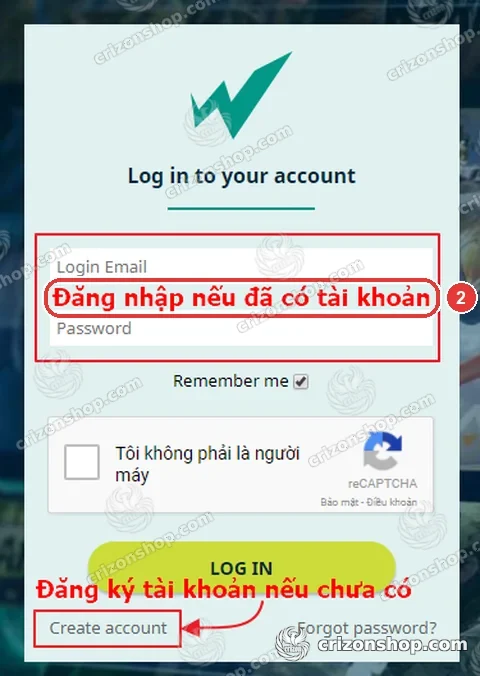
Enter your email and password, then click LOG IN. If you don't have an account yet, click Create Account on the WTFast download page and follow the steps to create one.
Activate your key on the code redemption page
While you're still signed in, open the WTFast code redemption page.
Copy your key and paste it into the code field on the page.
Click the confirm button right below the field to activate the key.
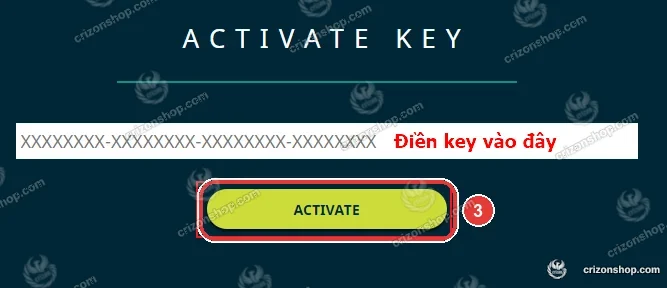
Click ACTIVATE to activate the key. Wait for the page to confirm that the key was activated.
Go to the account section of the website and check that your plan's end date has been updated.
Download and install WTFast on Windows
Go to the WTFast download page.
Click Download Version to download the latest version.
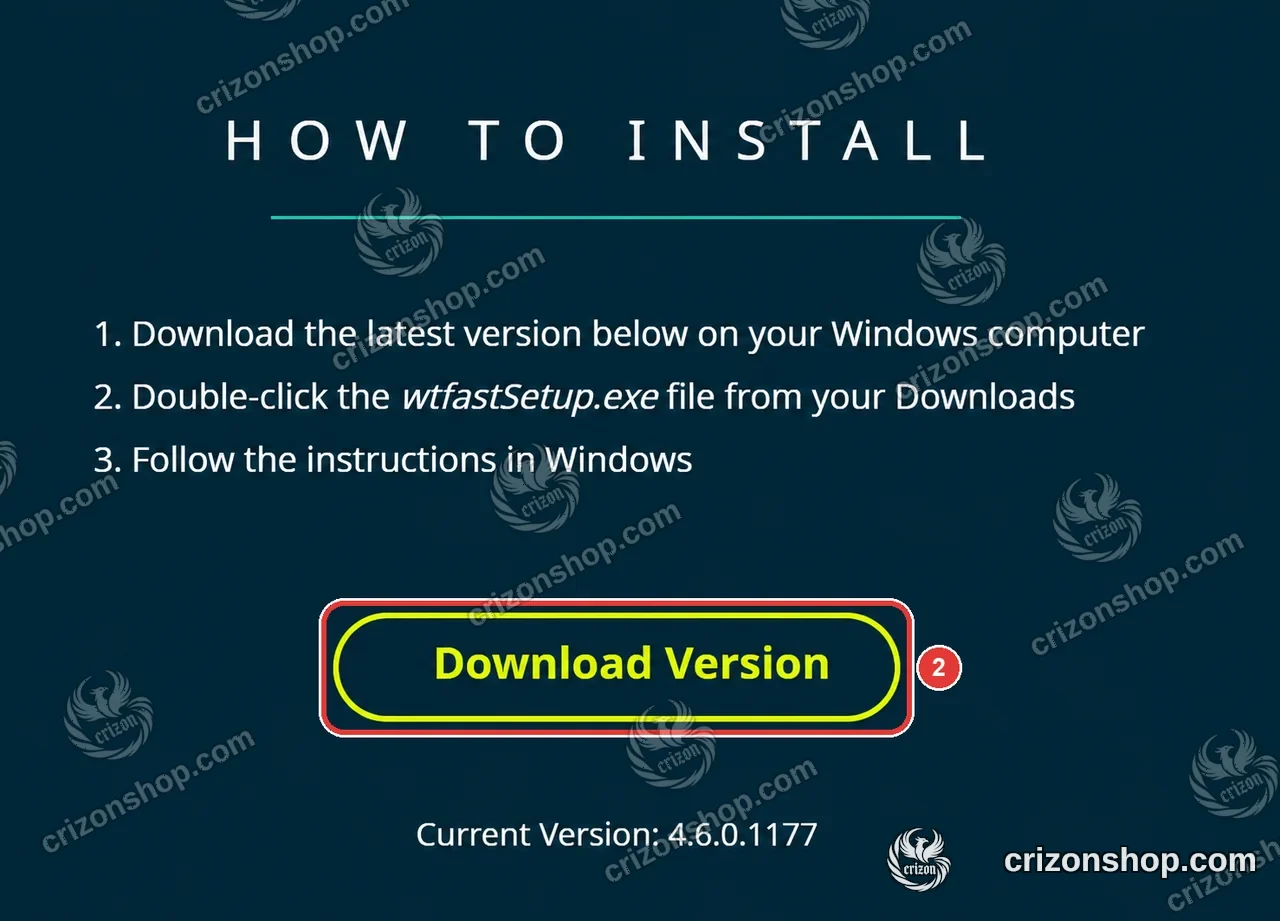
Click DOWNLOAD (Download Version) to get the latest version. Open
wtfastSetup.exein your Downloads folder.Follow the Windows installer steps until setup is complete.
Sign in to the app and connect when you play
Open WTFast from its desktop icon.
Sign in with the same account you used to activate the key.
On the main screen, choose the game you want to play from the list. Games installed on your PC are marked with a star.
Click CONNECT. WTFast automatically picks a suitable server and launches the game for you.
To switch to another game, click DISCONNECT first, then choose the new game.
Choose a server yourself
By default, WTFast connects to the server it rates as the best for your game. To play through a different region, follow these steps.
Select the game from the list.
Click the down arrow next to the CONNECT button.
Select PICK SERVER.
Choose the server region you want.
Click Connect to start.
Frequently asked questions
WTFast automatically scans your PC for installed games, but it doesn't always find all of them. Click Add a custom game and point it to the game's executable (.exe) file to add it manually.
First, make sure you're signed in to the app with the same account you used to enter the key on the website. If it's the right account, sign out and sign back in so the app reloads your plan status. If you sign in with Razer and can't get in, see the warning about the installer version above.
Paste the key again carefully. Check for extra spaces and characters that are easy to mix up. If you still get the error, take a screenshot of the message and contact the seller you bought the key from so they can check it.
WTFast's download page only offers a version for 64-bit Windows 10. For Macs, WTFast recommends installing Windows through Boot Camp and running WTFast on Windows. Note that Boot Camp is only available on Macs with Intel chips.
Related guides
 How to Recover Your Steam Account When You've Lost Access to Your EmailHow to Change Your EA Account (Formerly Origin) Email and Password
 How to Redeem a Battle.net Code on the Web, Desktop, and Mobile
Still need help?
Send your order code and we can sort it out faster.
