 Perplexity · Activate
How to Accept an Invitation to Join Perplexity Enterprise
Open the invitation email from Perplexity and click Accept Invitation. Sign in with the email that was invited and enter the code sent to your inbox. Then confirm that you're joining the organization to use the Enterprise plan.
When you're invited to a Perplexity Enterprise organization, you'll get an invitation by email. To join, accept it with your own Perplexity account. This guide shows you how to accept the invitation and get your sign-in code. It also covers a few common problems.
Before you start
- You need access to the inbox of the email address that was invited. Both the invitation and your sign-in code are sent there.
- You'll sign in to Perplexity with that same email. If it doesn't have a Perplexity account yet, you'll be asked to create one while accepting the invitation.
- Your account can't already belong to another Enterprise organization.
Accept the invitation
Open the inbox of the invited email address and find the email from Perplexity inviting you to join the organization.
Click Accept Invitation in the email.
On the Perplexity page that opens, click Sign in.
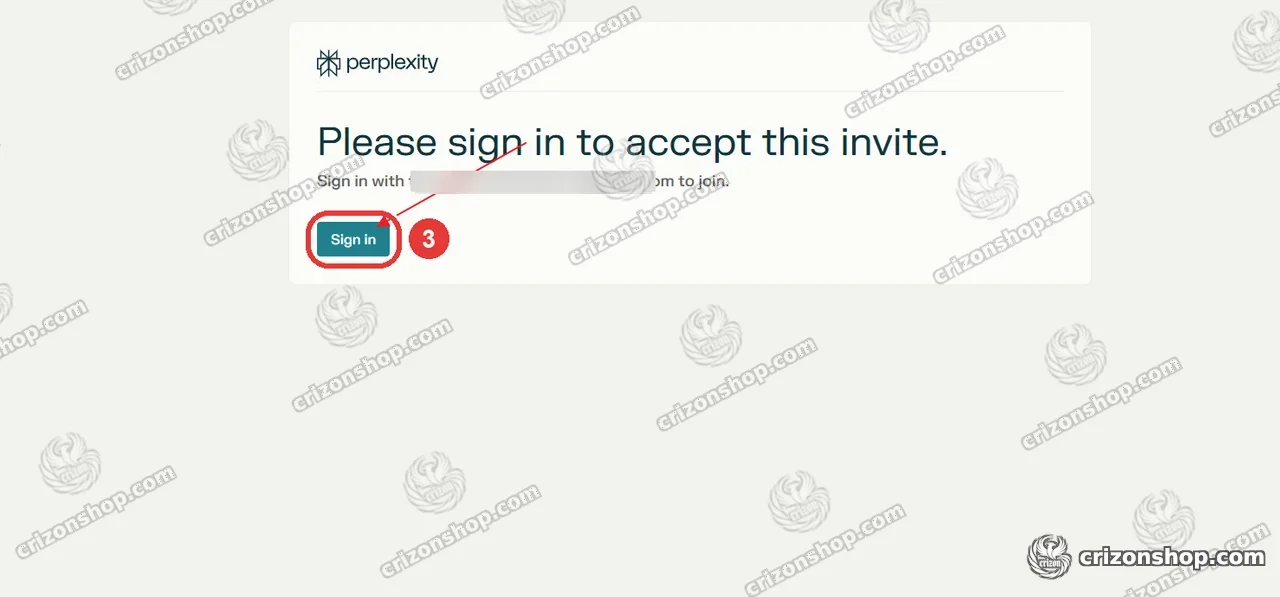
Click Sign in to continue. Enter the email address that received the invitation, then continue.
Go back to your inbox and open the latest sign-in email from Perplexity to get your code.
Enter the code on the sign-in page. If you're on the same device, you can also click the sign-in link in the email.
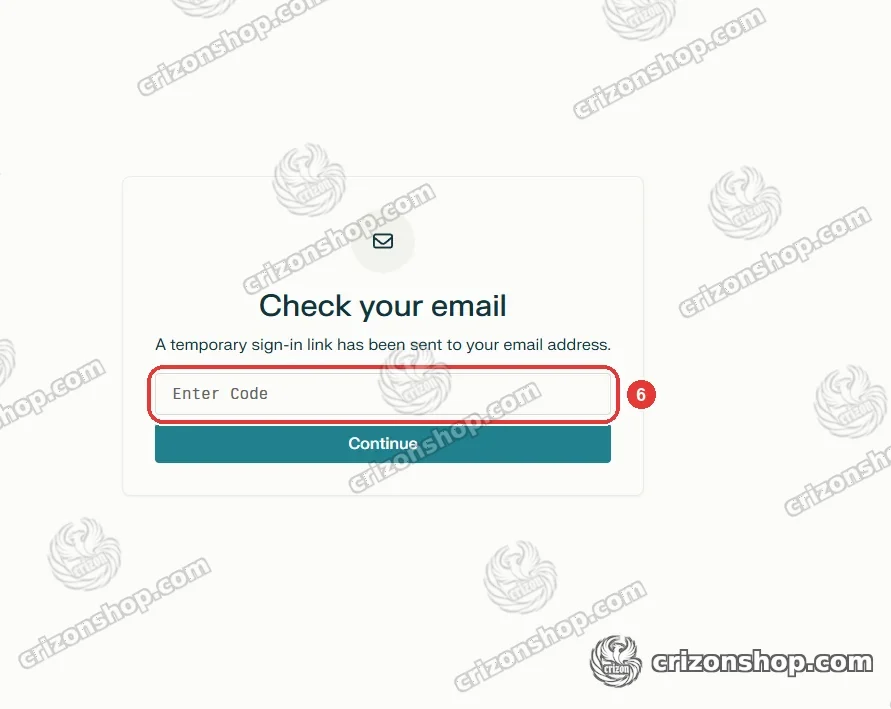
Enter the code in the Enter Code field. On the screen that asks you to join the organization, click Accept, then click Continue to accept the invitation.
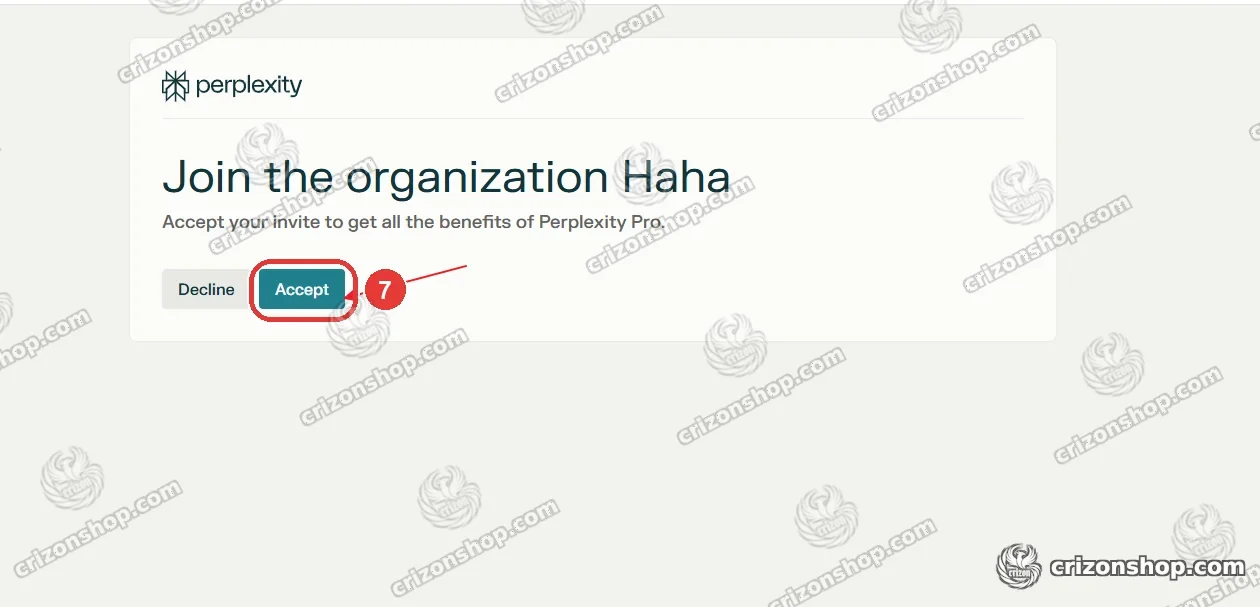
Click Accept (Continue) to accept the invitation. Enter any name you like in the Username field, then click Finish.
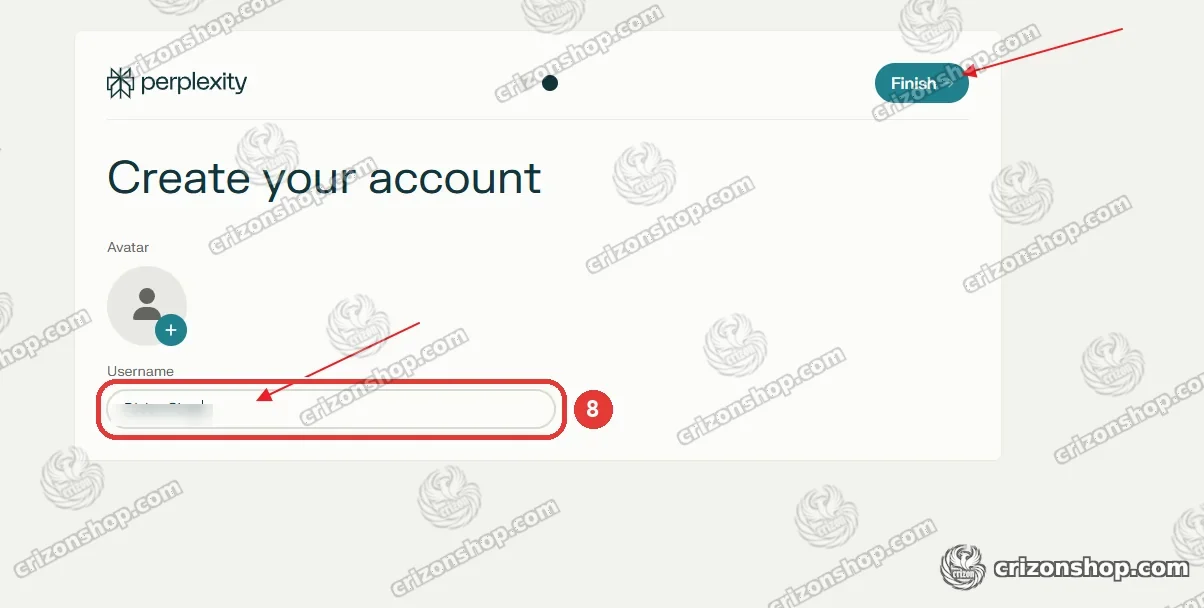
Enter a name in Username, then click Finish.
Check that you've joined
After you click Finish, your account becomes a member of the organization. In the admin's member list, your status changes from Invited to Member. If you're not sure you've joined, ask the organization's admin to check your status.
If the invitation or sign-in code doesn't arrive
Perplexity sends sign-in emails from [email protected]. If the email still hasn't arrived after a while, try these steps in order.
- Check your Spam, Junk, or Promotions folder in both the web version of your email and the mail app on your phone. If you find the email, mark it as not spam.
- Add
[email protected]to your contacts or safe senders list. - Check the email address you entered when signing in. A single typo means the email won't reach you.
- Check your internet connection, then try sending the code again.
- If you use Apple's Hide My Email, make sure emails are still being forwarded to your real inbox.
If you've tried everything and still don't have the email, read Perplexity's guide to fixing a missing sign-in code. You can contact their support with the button on that page. If the invitation email is the one that's missing, ask the organization's admin to check the email address they invited or send the invitation again.
Frequently asked questions
Yes. If you open the invitation with an email that doesn't have an account yet, Perplexity will ask you to create one with that email. Once your account is ready, finish the steps to join the organization.
The invitation is tied to one email address. Sign out of Perplexity and sign back in with the email that received the invitation. Then open the invitation email again and click Accept Invitation.
When you accept the invitation, your personal Pro plan is moved to the organization's plan. According to Perplexity's member management guide, you'll get credit for the time left in your Pro billing period.
Not right away. An account can belong to only one Enterprise organization, so you need to leave or delete your current one first. Then ask the person who invited you to send the invitation again, and follow the steps above.
Related guides
How to Sign In to Perplexity and Check Your Pro PlanHow to Sign In to Perplexity with Email, Google, or Apple How to Log In to Your Private ChatGPT Plus Account
Still need help?
Send your order code and we can sort it out faster.
